Waitlists and trial boxes
Collect interest when you're full, and let new people try a single box before they commit.
Two features help you grow without overcommitting: waitlists for when you’re full, and trial boxes so people can try you once before signing up for a season.
Waitlists
There are four ways someone can end up waiting for a spot.
The whole share is full
In Share types and sizes, set Max members and choose When it’s full → Take waitlist signups. Signups work as normal until the share reaches its limit. From then on, the signup form says “This share is full. Join the waitlist and the farm will reach out when a spot opens.”, and every size only offers the waitlist. When a spot opens up (a member cancels), regular signups come back by themselves.
You want a size to be waitlist-only
Turn on Enable waitlist for this size in Share types and sizes. From then on that size only offers the waitlist in the signup form, whether or not you’re full. Use it when you close one size by hand, and turn it off to sell that size again. You can rename the button with Button label (it defaults to “Join waitlist”).
Either way:
- They fill in the form as normal, but aren’t charged and get no boxes.
- They appear in Members with the status Waitlist. Filter by Status → Waitlist to see them all. The size on the Share Types page also shows how many people are waiting.
- They’re left out of billing, pack lists and check-in.
Moving someone off the waitlist: Copia doesn’t have a one-click button for this yet. When a spot opens:
- Contact them to confirm they still want it.
- Add them as a member with Members → Add member. Search for their existing Shopify customer and choose their season, size and pickup.
- Remove their old waitlist record (open it and click Remove member) so they aren’t listed twice.
A pickup location is full
When a pickup location reaches its member capacity, the signup form lets people leave their email to hear when a spot opens. Copia stores these emails, but they aren’t shown in the admin yet. Email support@copia.farm and we’ll send you the list.
You don’t deliver to their area
If someone’s zip/postal code isn’t in your delivery zones, they can leave their email to hear if you start delivering there. These are stored the same way. Ask us for the list when you’re planning new zones.
Trial boxes
A trial box is a single, one-time box on an upcoming delivery date, with no recurring deliveries. It’s a low-risk way for someone to try your farm.
Set one up
In Share Types, edit a size (or make a size just for trials, like “Trial Box”) and turn on Enable trial box for this size. Then choose:
- Let members choose their delivery date: they pick from your upcoming delivery dates. Otherwise they get the next one.
- Defer payment — send invoice at signup (shows once members can choose their date): skips checkout. They reserve their date, and Shopify emails them an invoice to pay before their box. See How people pay.
What customers see
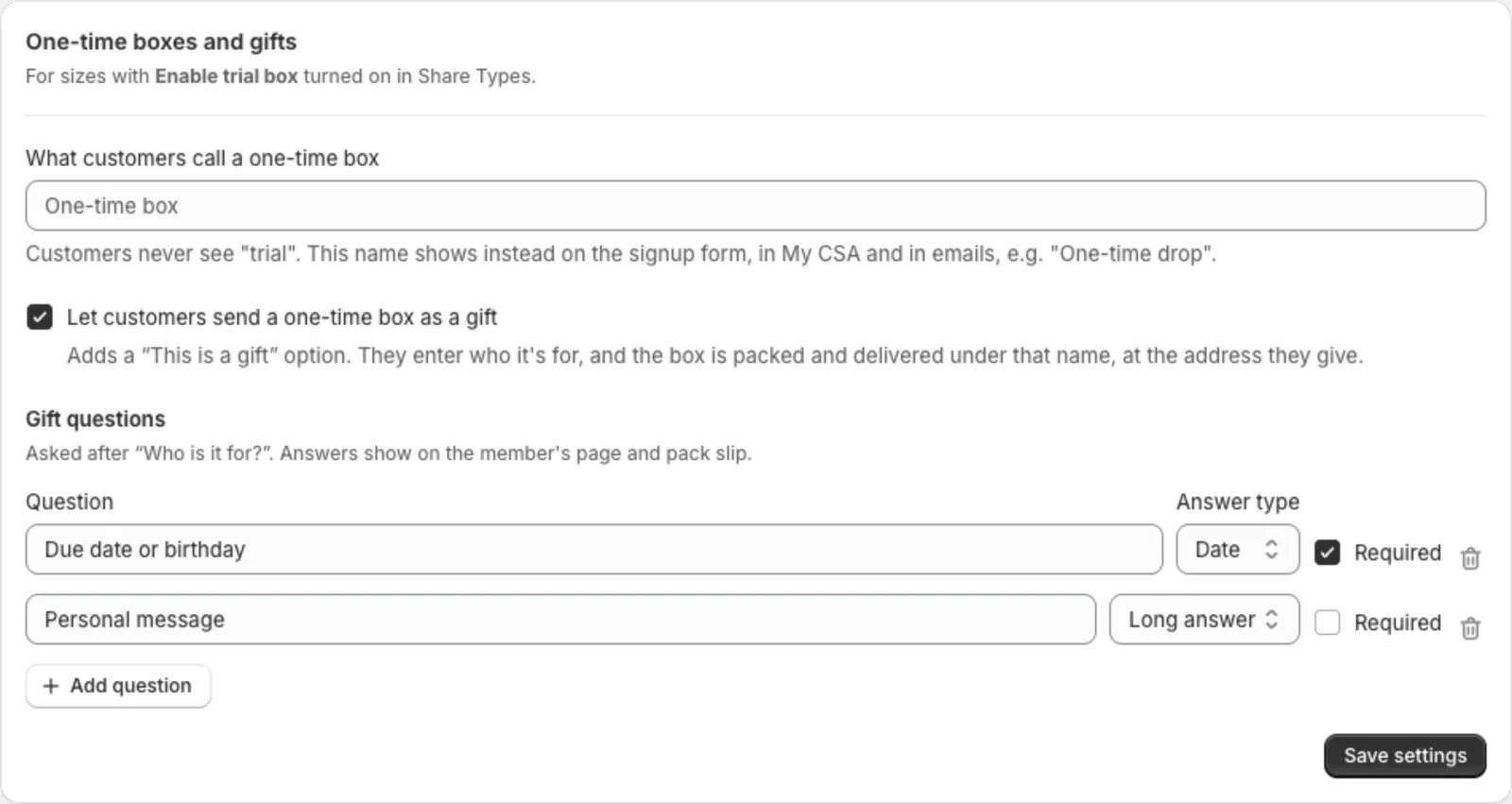
Customers never see the word “trial”. The signup form, My CSA and their emails call it a One-time box, or whatever you name it in Settings → One-time boxes and gifts → What customers call a one-time box (for example “One-time drop”). Your admin pages still say “Trial box”.
How people pay
- Online: they go through Shopify checkout like any order.
- By invoice (with Defer payment on): no checkout. At signup Shopify emails them an invoice for the box, plus the delivery fee for home delivery. Their box is held on the date they picked, and it’s marked paid when they pay the invoice. Their welcome email says the box is reserved and the invoice is on the way.
- In person: they reserve without paying, for pickup or home delivery. Their Shopify customer is tagged
copia-trial, the box stays unpaid, and you collect when they get it. Use check-in or Shopify POS to take payment. The signup form and their confirmation email tell them to pay when they pick up (or when it’s delivered), plus your Payment note from Farm settings if you’ve set one.
They get a Trial box confirmed email (or Trial box confirmed, pay at pickup). You can turn these off in Settings → Notifications.
Send it as a gift
Many people buy a one-time box for someone else, like new parents. To let them:
- Go to Copia → Settings → One-time boxes and gifts.
- Turn on Let customers send a one-time box as a gift.
- Under Gift questions, keep or change the two questions Copia starts you with, Due date or birthday and Personal message. Add your own with Add question (up to 10). Each one can be a date, a short answer or a long answer, and you can mark it Required.
- Click Save settings.
On a one-time size, the signup form now shows a This is a gift card (“Send it to someone else.”). When a customer selects it, they enter Who is it for? and answer your questions. For home delivery, the address they enter is the recipient’s (Their delivery address). The review step lists the gift details before they pay.
Gifts work however the size is paid: online, in person, by invoice, or from the waitlist (the gift details stay with them until you activate the member). The buyer pays and gets the confirmation email (“It’s a gift for…”). The box is packed and delivered under the recipient’s name:
- Member page: a Gift badge, who it’s for, and the answers.
- Pack list and pack slips: the recipient’s name with “Gift from” the buyer. The answers print on the slip, so you can tuck the personal message in the box.
- Labels and delivery routes: the recipient’s name.
- Shopify order (when paid online): a Gift for line.
After the trial
A trial member stays in your Members list with a Trial badge. Nothing converts them into a full member automatically. Follow up after their box, and point them to your signup form to join for the season. If they use the same email, Copia links the new membership to their existing customer.
Good to know
- Capacity counts members, not boxes. A member who gets a box every other week takes one spot, even on weeks they don’t get a box.
- Waitlisted people don’t count toward your Copia plan’s member total. Only active members do.