Farm settings
Your farm profile, social links, brand colours, wording, member portal help text, menu, and other settings that apply across Copia.
Copia → Settings holds the settings that apply to your whole farm.
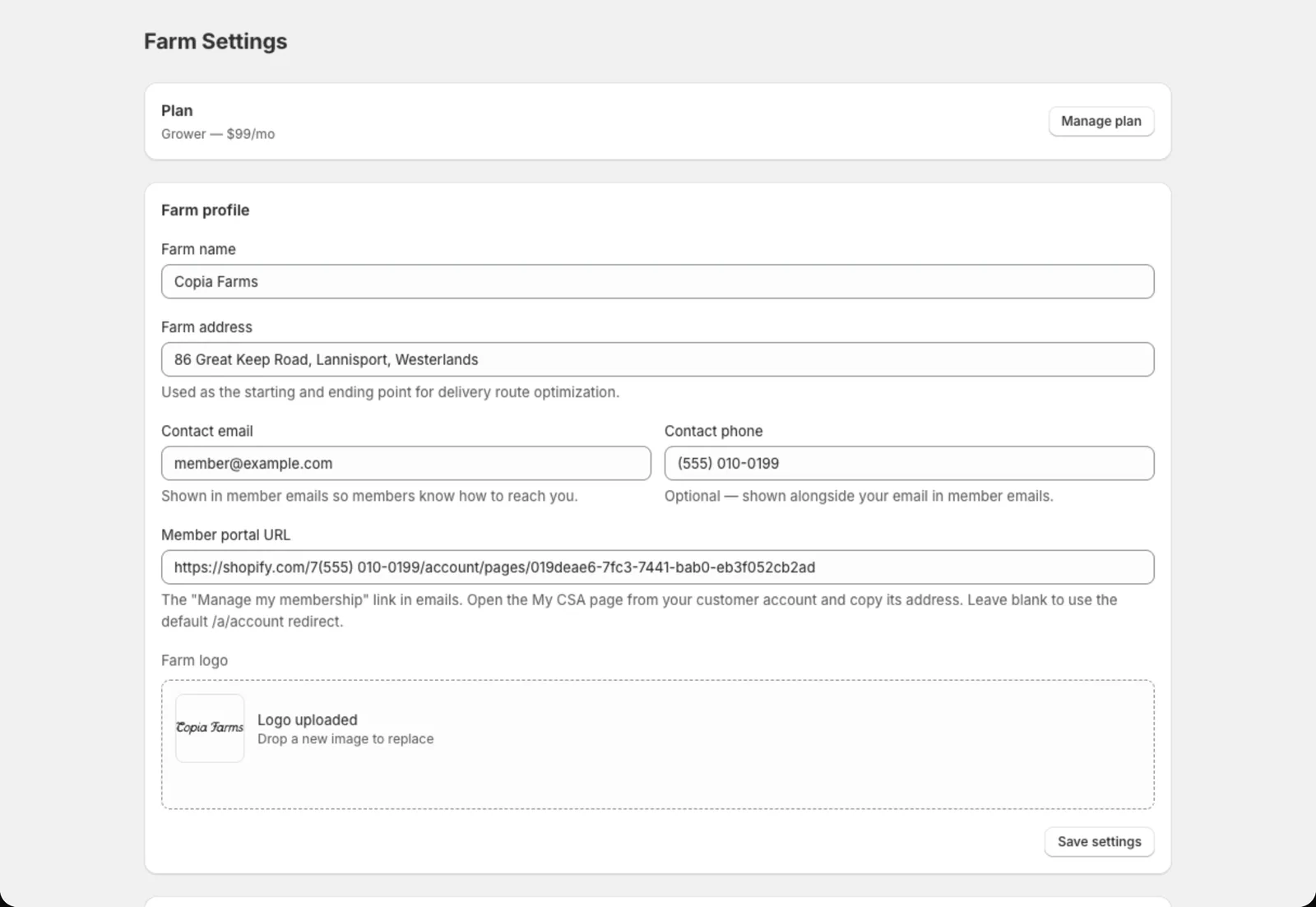
Farm profile
- Farm name and logo: shown on the signup form, member portal and every email
- Farm address: where delivery routes start and end
- Contact email and phone: shown in member emails, and where member replies go
- Member portal URL: the link to My CSA, included in emails (see Setting up the member portal)
- Farm timezone: when scheduled emails go out (8:00 AM your time)
Brand colors
Set your primary colour, backgrounds, text and borders. These are used on the signup form, member portal and emails. The Preview shows how buttons and options will look. You can also set the signup form’s Text size.
Terminology
Make Copia talk the way you do:
- Singular term / Plural term: “Share” / “Shares”, or “Box” / “Boxes”, “Bag” / “Bags”…
- CSA label: what you call the program, like “CSA” or “Veggie Club”
- Organization term: “farm”, “garden”, “co-op”…
These words are used in the admin menu, signup form, emails and invoices. The organization term also replaces “farm” across Copia itself: in Settings (like “Kitchen profile” and “Kitchen address”), on your plan (“Founding Kitchen”), and in the signup form, member portal and driver page.
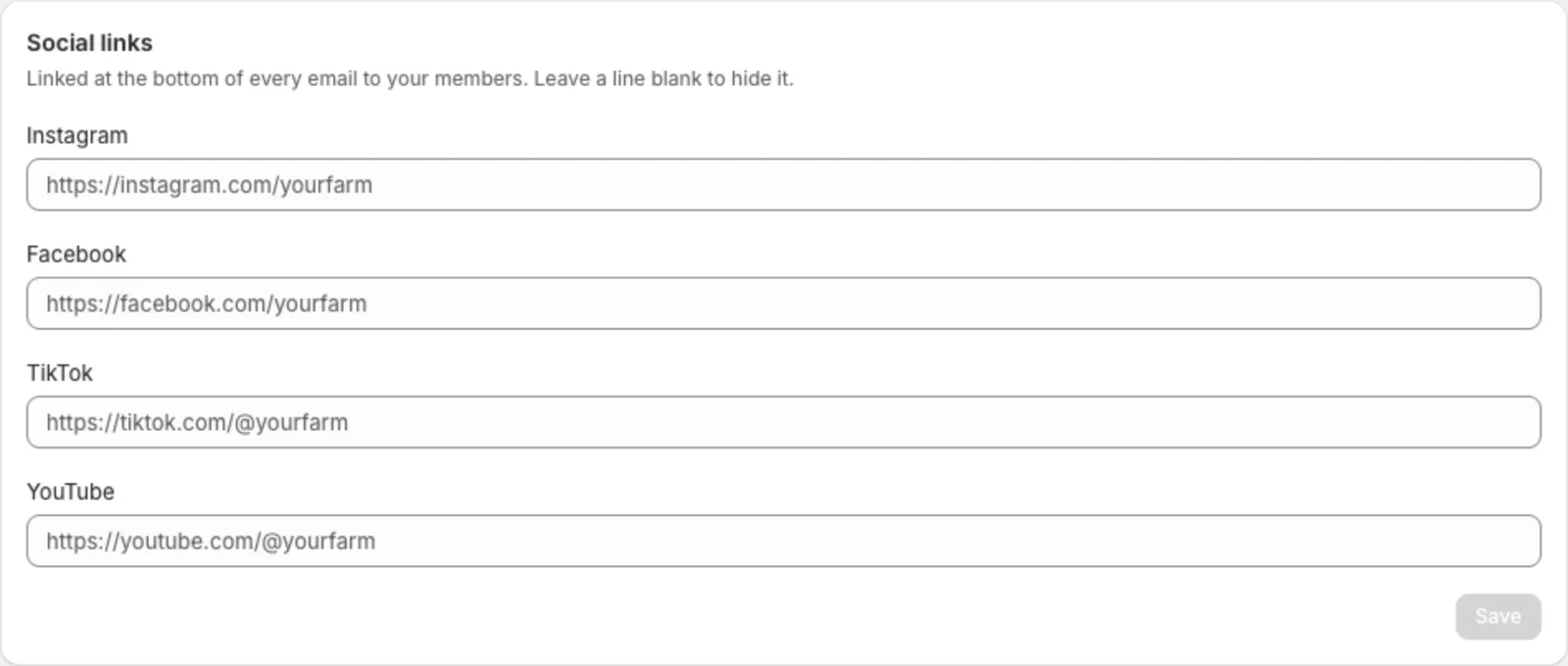
Social links
Link your farm’s pages at the bottom of every email to your members:
- In Social links, paste the link to your page under Instagram, Facebook, TikTok or YouTube. Leave the others blank.
- Click Save.
Use the full link to your page, like instagram.com/yourfarm. A handle on its own (@yourfarm), the site’s home page or a link to a different site won’t save, and the card tells you what to enter instead. To take a link off your emails, clear the field and click Save.
See Member emails for which emails include them.
Portal wording
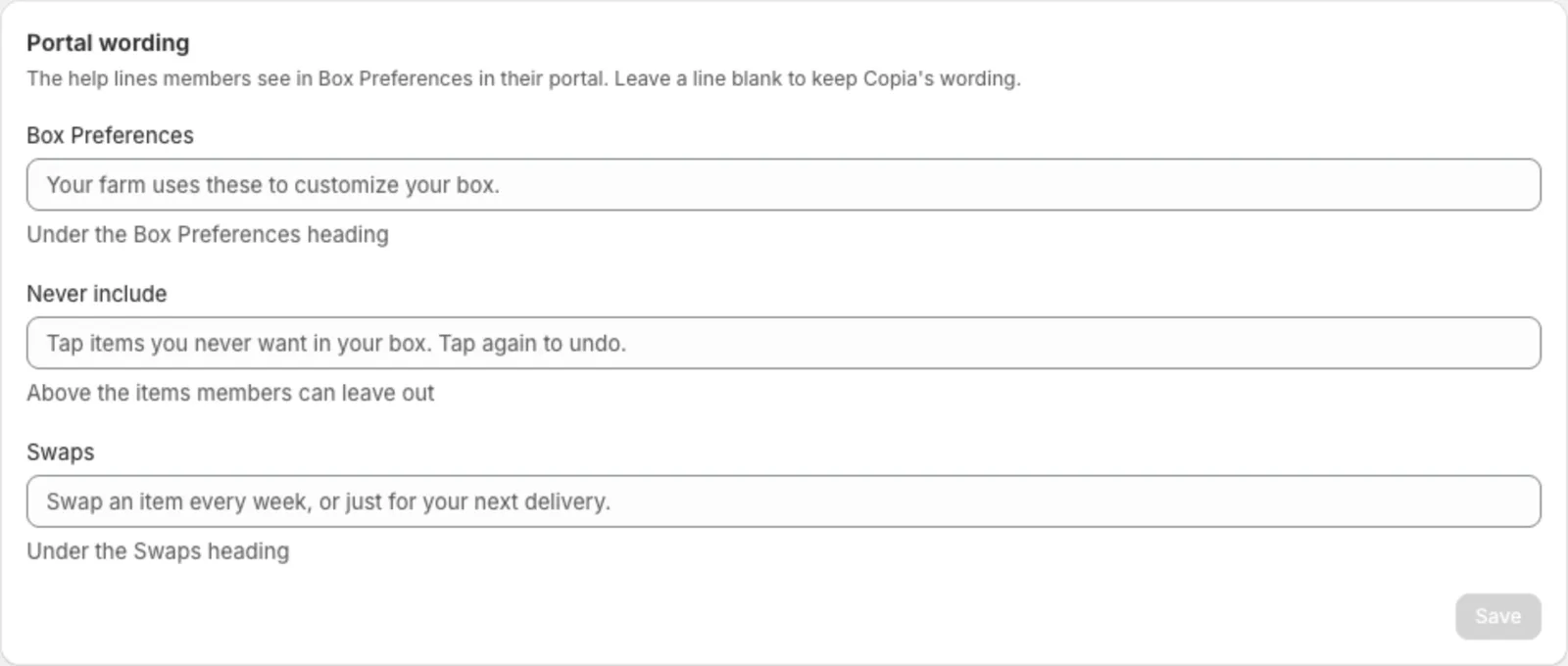
Rewrite the short help lines members see in My CSA → Box Preferences in the member portal:
- Box Preferences: under the section heading (“Your farm uses these to customize your box.“)
- Never include: above the items members can leave out (“Tap items you never want in your box. Tap again to undo.“)
- Swaps: under the Swaps heading (“Swap an item every week, or just for your next delivery.“)
Each field shows Copia’s wording in grey. Type your own and click Save. Members see it the next time they open their portal. Clear a field and save to go back to Copia’s wording.
Navigation
Hide features you don’t use from the Copia menu: Harvest Planning, Pickup Locations, Delivery Routes or Fulfillment. They’re only hidden, so you can turn them back on any time.
Delivery settings
- Unpaid setup invoices: what happens when a member hasn’t paid an invoice by delivery day. The invoice email tells members what to expect. See Billing members.
Signup form settings
- Show delivery count on season cards, like “49 deliveries”
- Show estimated season total on review screen, like ”~$1,200 est. over 50 deliveries”
- Date format: how dates look on the signup form, always with the year. Pick from “Sun, Nov 8, 2026” (the default), “Sunday, November 8, 2026”, “Nov 8, 2026”, “11/08/26” (month/day/year), “08/11/26” (day/month/year) or “2026-11-08”. It’s used for every date on the signup form (season start, pickup dates, the one-time box date picker and the review step), in member emails (subjects too) and in the member portal. If you never pick one, emails keep “Sunday, November 8, 2026” and the portal “Sun, Nov 8, 2026”. Emails to you, like new signup alerts, aren’t affected.
- Pay-in-person settings: the heading, message and payment note on the confirmation screen for members who pay at pickup. The Payment note says how members can pay you in person, like “Cash, card, or EBT accepted.” Copia doesn’t list payment methods on its own, so add this if you want members to know. It also shows next to Pay in person on the signup form and in the trial box email.
One-time boxes and gifts
- What customers call a one-time box: shown instead of “trial” on the signup form, in My CSA and in emails. Leave it empty for “One-time box”.
- Let customers send a one-time box as a gift, and the Gift questions they answer. See Send it as a gift.
Item categories and cancellation reasons
- Item categories group items in “Build my box”, like Greens, Roots and Fruit.
- Cancellation reasons are the options you pick from when a member cancels. Turning a reason off hides it but keeps its history, so you can still see why members left.
Saved cards
Saved cards lets Copia save new members’ cards at checkout and charge them before each box, instead of sending invoices. It’s off until you turn it on. See Turn saved cards on or off.
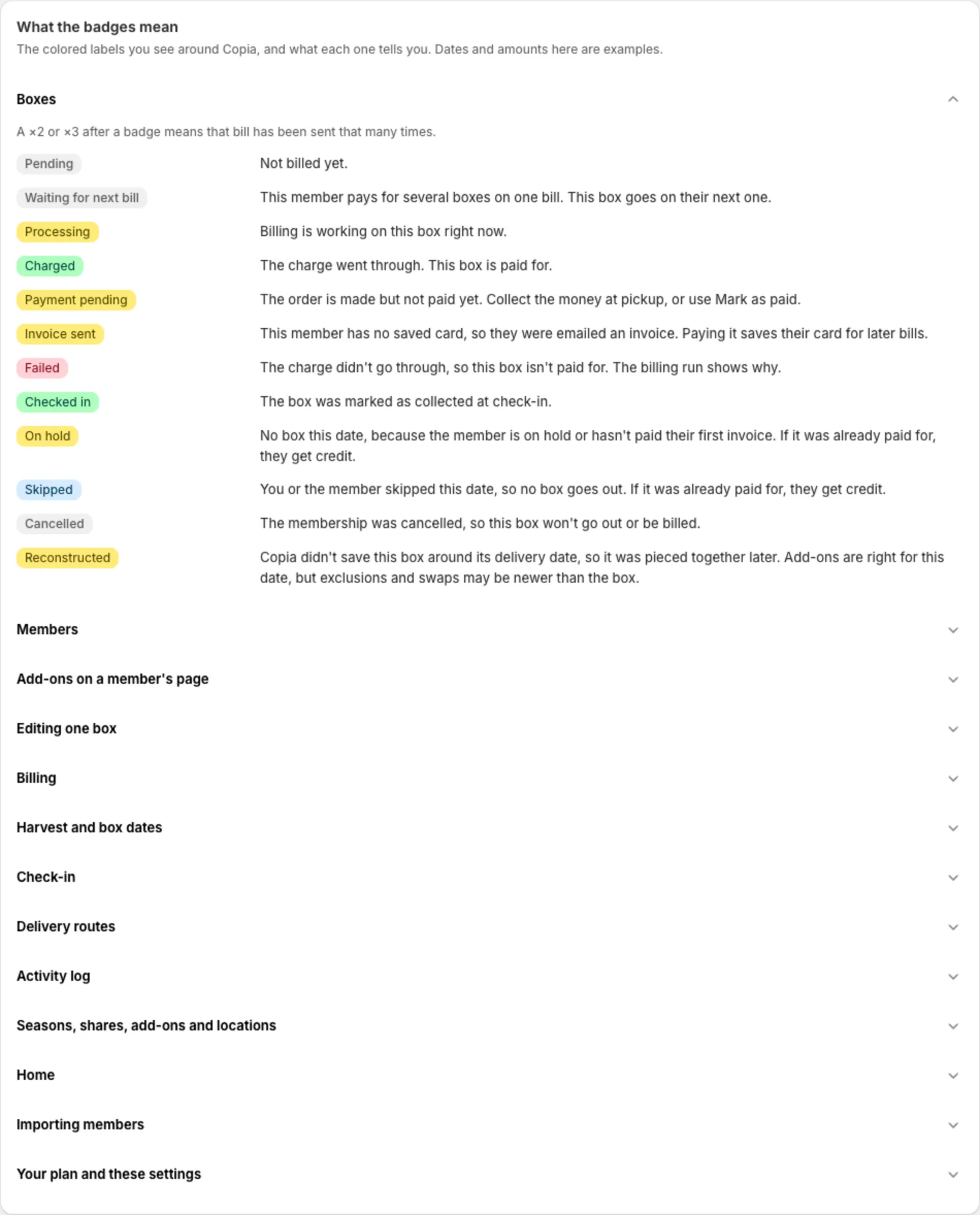
What the badges mean
Not sure what a colored label means? At the bottom of Settings, What the badges mean lists every badge in Copia and what it tells you, grouped by where you’ll see it. Click a group to open it.
Plan
Plan → Manage plan shows your Copia subscription and lets you change it.