Harvest planning
Plan what goes in each delivery's box, and let Copia work out how much to harvest for every size.
Harvest Planning is where you decide what goes in the box for each delivery date. You enter how much goes in a full share, and Copia works out the quantities for every size and the total you need to harvest.
The delivery list
Go to Copia → Harvest Planning. You’ll see every upcoming delivery date with its season, number of active members, and whether the box has been planned yet.
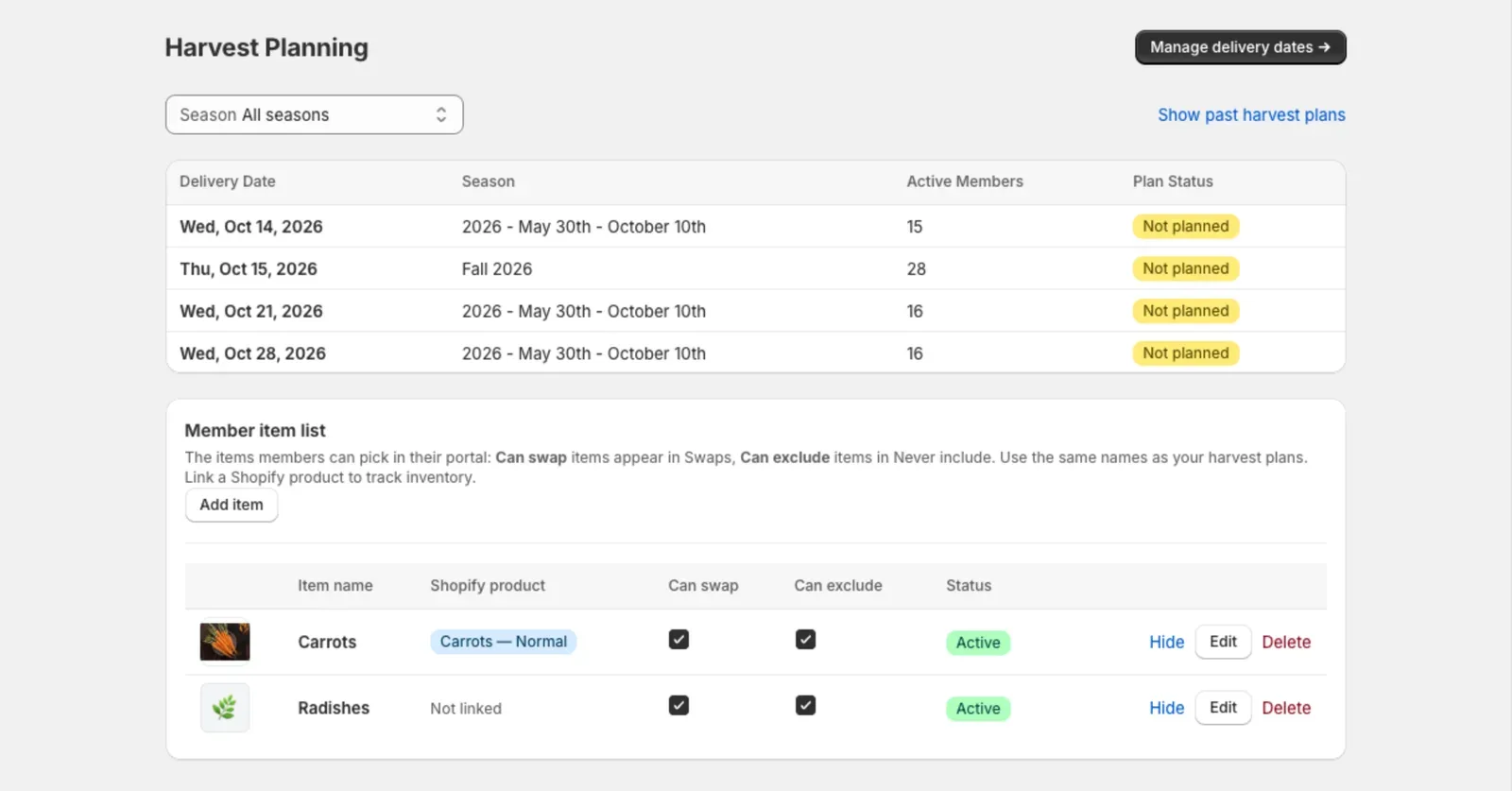
Click a date to plan it.
Tip: Members see each date’s box in the member portal as soon as you plan it, personalized with their size, swaps, Never include items and add-ons. Until then, their Your next box card says the farm hasn’t posted it yet.
Plan a delivery
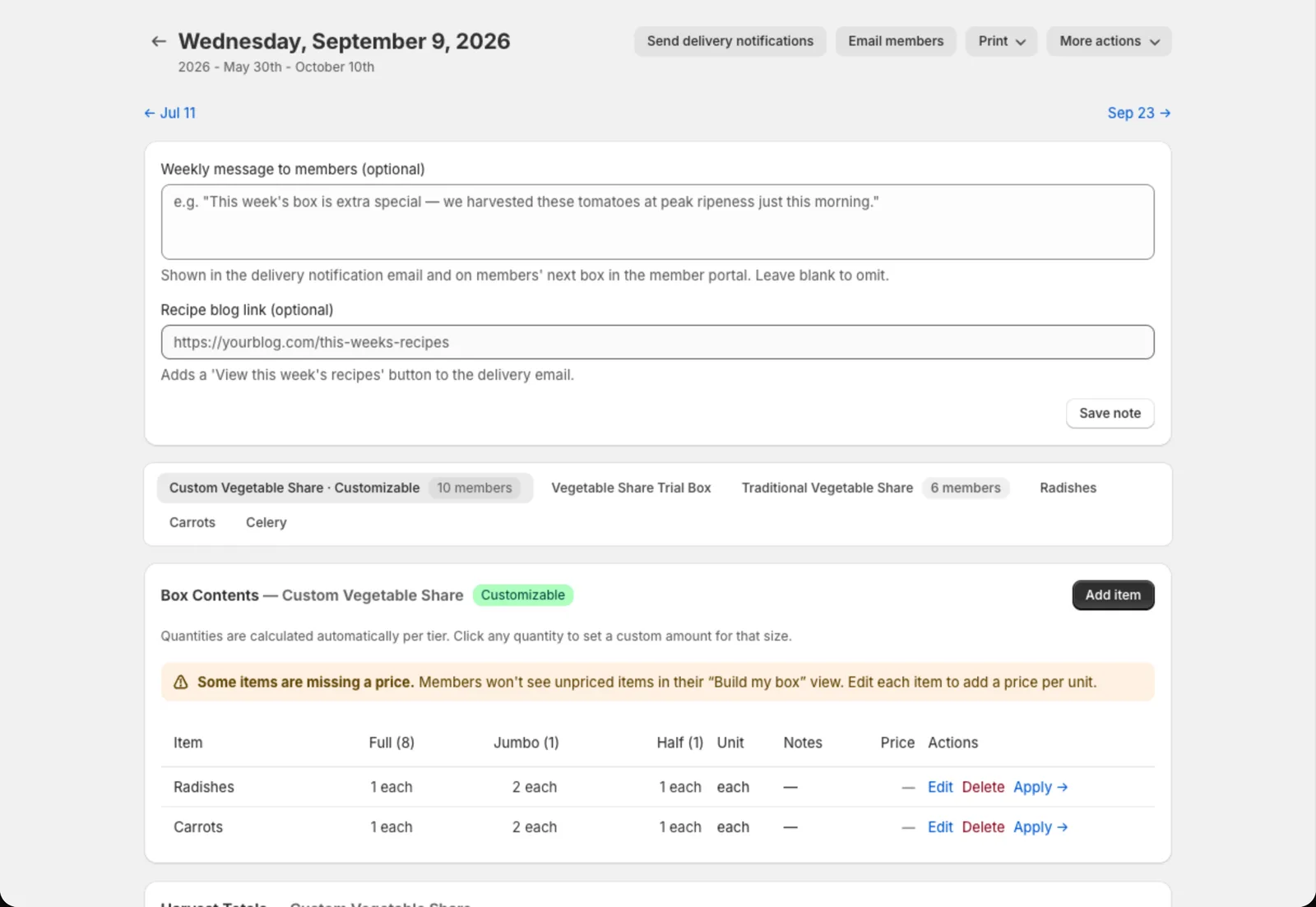
With more than one share type, each gets its own tab with its own box. A tab shows how many members that share has for the date, and “Customizable” when members can build their own box.
If you set a default box for the season, the date starts with those items. From there:
- Add item: pick a Shopify product (or just type a name), then set Qty per full share and the unit (lbs, bunches, each…).
- Copy from another date: start from any other delivery in this season that has a box planned (under More actions). Handy when your locations have their own dates, since each date is planned on its own.
- Import from collection: add a whole Shopify collection at once.
Copia fills in the quantity for each size using that size’s harvest multiplier. For example, a Half share with a 0.5 multiplier gets half of the full-share amount. To set an exact amount for one size, click its quantity and type it in. Set it to 0 to leave the item out of that size’s boxes: it won’t be on their pack list or in their “what’s in your box” email.
Harvest totals at the bottom show how much of each item to pull from the field, with member counts in brackets. Swaps are counted in. When members swap to an item that isn’t in your plan, it gets its own line, like “Potato (swap, not in plan)”, so you know how much to bring from what you have on hand. Delivery revenue shows what the day is worth.
Customizable boxes
If a share type has customizable boxes turned on, members can Build my box in the member portal by picking items from this delivery’s list. For each item, set:
- Price per unit: what the item counts for in the member’s box. Items without a price are hidden from members.
- Available quantity: how many units members can claim in total. Leave it blank for no limit.
- Category: groups items (Greens, Roots…) to make choosing easier. You can edit categories in Settings → Item categories.
Member item list
The Member item list on the Harvest Planning page is what members choose from in their portal. Each item has two checkboxes:
- Can swap: members can pick it for a swap, every week or for one delivery.
- Can exclude: members can pick it under Never include.
Click Add item to add one, and tick the checkboxes right in the list to change where it appears. Linking an item to a Shopify product tracks its inventory.
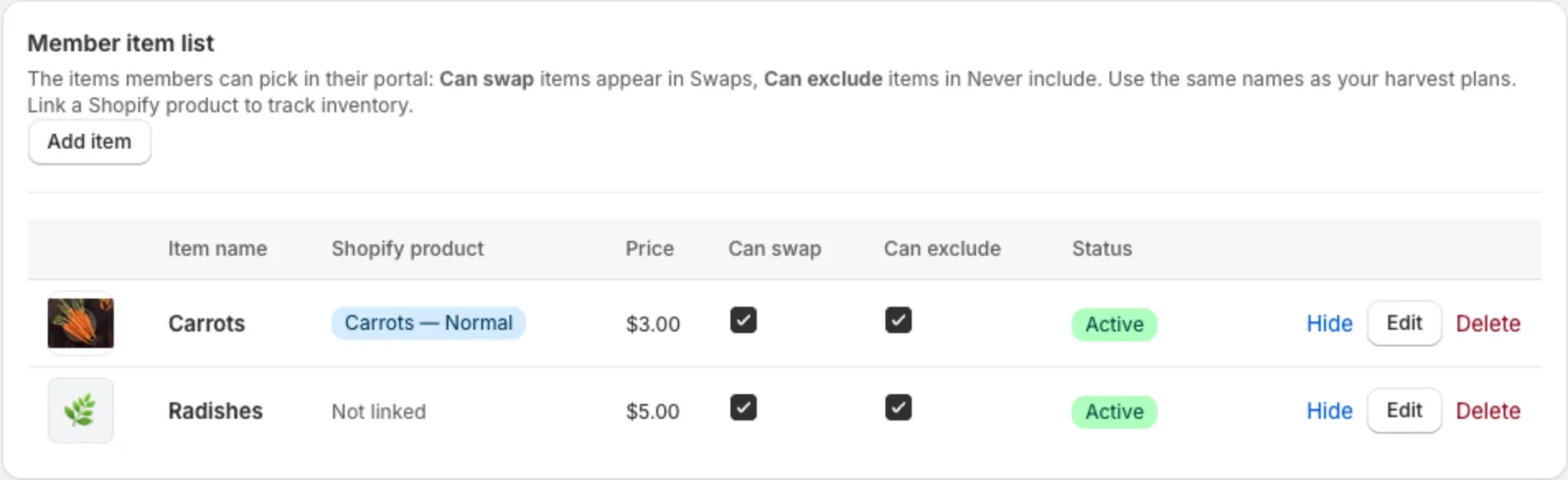
Price is optional: what the item is worth in a box. When a member swaps between two priced items, the difference is charged or taken off that box (see When a swap changes the price). Linking a Shopify product fills it in with the product’s price, and you can change it. Leave it blank for an even trade.
Set how much members get when they swap to an item
When a member swaps to an item that isn’t in that week’s plan, they get it in the same amount as the item it replaces. Swap 2 onions for Swiss chard and they get 2 Swiss chard. To give a set amount instead:
- Click Edit next to the item in the Member item list.
- Fill in Amount when swapped in and Unit, for example 1 and bunch.
- Click Save.
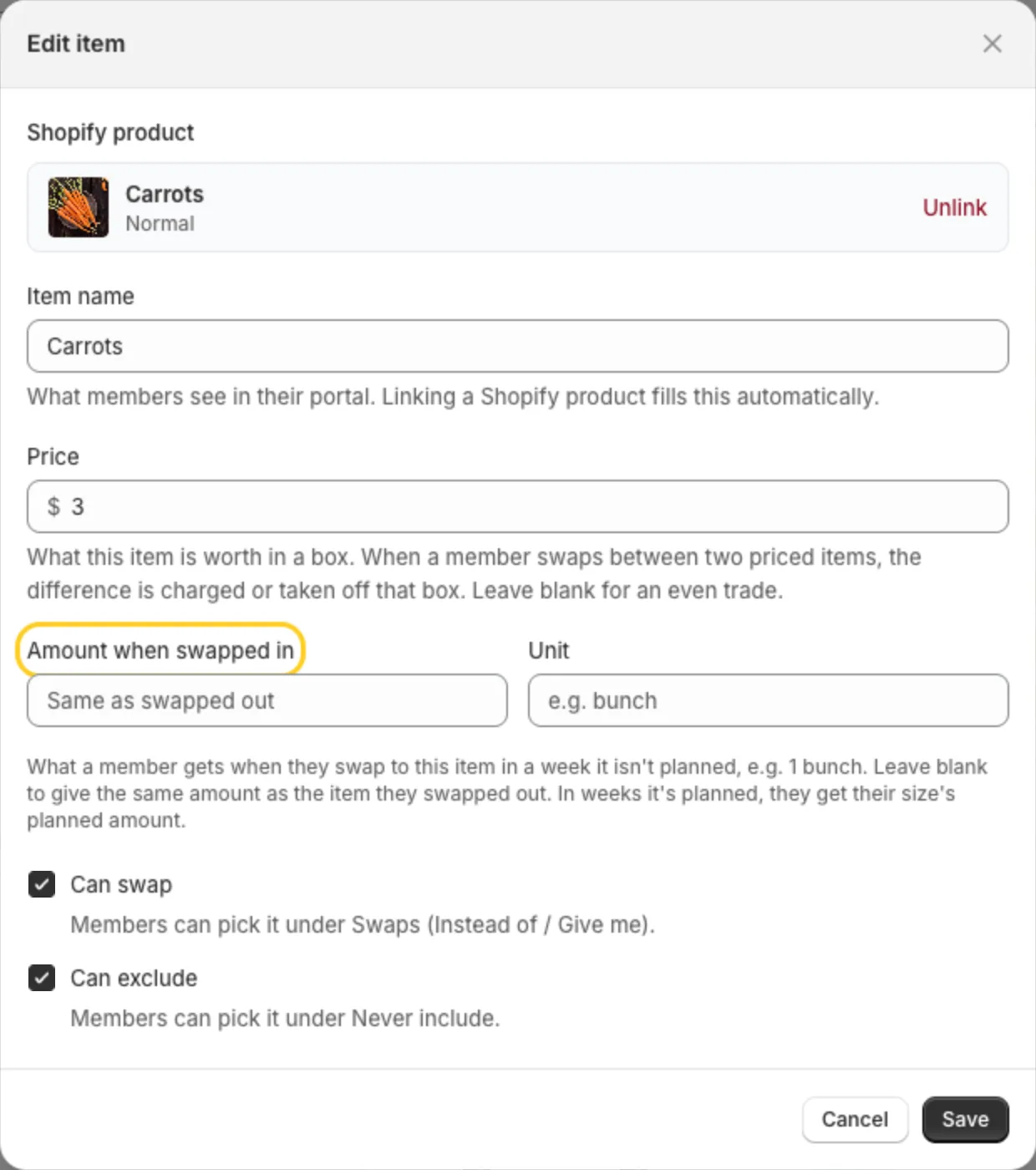
Every swap to that item in a week it isn’t planned now gets that amount, including swaps members already made for upcoming deliveries. It shows that way on the pack list, the harvest totals, the delivery email and the member’s portal.
It’s the same amount for every size.
In a week the item is in your plan, members get the amount you planned for their size instead.
Leave it blank to keep the even trade.
Use the same names you use in your harvest plans. A Never include item only matters in a week it’s planned. A swap needs the item it replaces to be in that week’s box, but the item members ask for can be one you didn’t plan, like something you keep on hand (see Swaps). Each name can only be on the list once.
Members can only pick items on this list. With no Can swap items they can’t add swaps, and with no Can exclude items the Never include section doesn’t appear.
Hide takes an item off both lists without deleting it.
Who’s on this delivery
The member list for the date shows every box and its status: Charged, Pending, Skipped, On hold, Failed and so on. Use Add member to this delivery to add someone outside their normal schedule, like a member making up a missed week.
Messaging members about this delivery
- Weekly message to members, at the top of the date, is a short note for this delivery. Click Save note. It goes in the delivery notification email and shows under From the farm on members’ Your next box card in the portal.
- Send delivery notifications emails members their box contents, with an optional note and a link to a recipe blog.
- Email members sends a custom message to everyone with a box that day, like “Pickup is moving inside because of rain”. Untick anyone you want to leave out, and use Send test to me first.
Printing
Use Print → Pack list or Pack labels. See Pack lists and labels.