Setting up the member portal
Give members a "My CSA" page in their Shopify account where they skip weeks, pause, and set box preferences.
The member portal is a My CSA page inside your members’ regular Shopify customer account. Members sign in to your store the usual way, open My CSA, and manage their own membership. That means fewer emails to you.
What members can do
- See their next box at the top of the page: when and where it is, how long they can still change it, and what’s in it
- See their upcoming deliveries, skip or unskip a week, and add extras to one box, until your change cutoff
- Pause deliveries (Pause pickups for a pickup member) for a date range, or cancel, if you allow each one (Self-pause and Self-cancellation). Before cancelling, they’re offered a pause instead. After the cutoff, the locked delivery still goes out and they’re told before confirming.
- Build their box from this week’s items, if you’ve turned on customizable boxes
- Add or change add-ons like eggs or bread
- Set box preferences: items they never want, swaps (“instead of kale, give me spinach”) every week or just for one delivery, and dietary notes (you can change that field’s label and example text in your share type)
- See their credit balance and choose whether to use it on their next delivery
- See what they owe and pay open invoices online
- Find your email and phone at the bottom of the page (“Questions? Contact …“)
You decide which of these are allowed for each share type under Copia → Share Types → Configure → Member box preferences.
Your next box
The Your next box card sits at the top of My CSA. It answers what members usually open the portal to check. A member with more than one share sees one box per share, under Your next boxes.
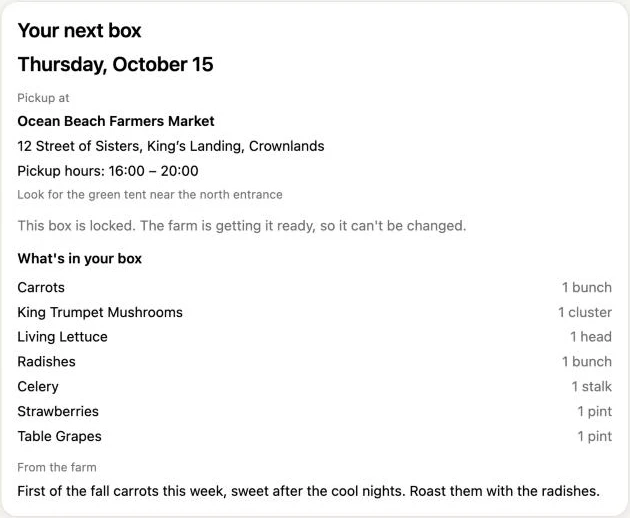
For each share’s next box going out (skipped and paused weeks are passed over), the card shows:
- The day and date, with a badge like Invoice sent or Pay at pickup when it isn’t a plain upcoming box.
- Where: the pickup location’s name, address, hours (or your own schedule wording) and instructions, or the member’s delivery address.
- The deadline: “You can change this box before Sun, Oct 18.” Once the box locks, it says “This box is locked. The farm is getting it ready, so it can’t be changed.”
- What’s in your box: the items from your harvest plan for that date, in the member’s size, plus their add-ons. Their Never include items are left out and their swaps are shown (“Instead of Kale”). Until you plan that date, it says “The farm hasn’t posted what’s in this box yet.”
- From the farm: your Weekly message to members for that date, if you wrote one.
- Skip this box and, for customizable boxes, Build my box.
What drives the card
Everything on the card comes from settings you already have:
| On the card | Where you set it |
|---|---|
| What’s in the box | Harvest Planning → a delivery date. Plan the date and the card fills in right away. Items set to 0 for a size don’t show for members of that size. |
| From the farm | Weekly message to members at the top of the same delivery date. Click Save note. It also goes in the delivery notification email. |
| “You can change this box before…” | The share type’s change cutoff (Share Types → Configure → Change cutoff), or the location’s or zone’s own. |
| Pickup details | The pickup location’s address, hours and instructions (Copia → Pickup Locations). |
| Questions? Contact … | Contact email and phone in Settings. |
Tip: Plan each delivery and write its weekly message before the cutoff. Members can see the box and decide to skip or swap while they still can.
Upcoming deliveries
Upcoming Deliveries lists the member’s next 4 boxes with their date, status and price. Pickup members read Upcoming Pickups, and a member with both kinds of share reads Upcoming Boxes. Show all opens the rest of the season, and Show fewer closes it again. Skipped, paused and cancelled boxes show no price.
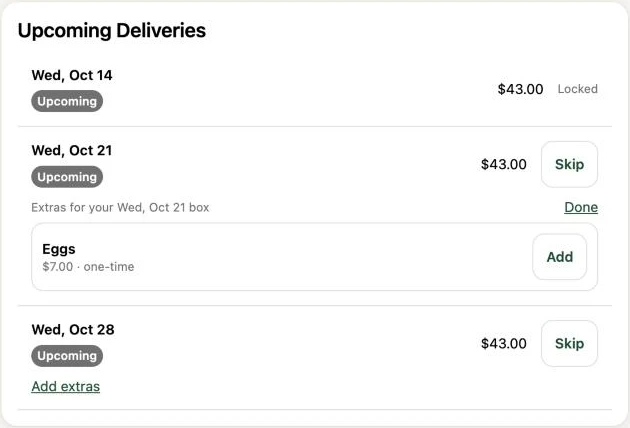
Each box has an Add extras link for one-time add-ons. It opens the add-ons available for that one box. Members pick quantities and click Done. Once they’ve added something, the line shows what they chose, like “Extras: Eggs”, with a Change extras link.
Payments
Payment due
When a member owes something, a Payment due section appears under their next box, one row per bill with the amount:
- An unpaid invoice: “Invoice for your Wed, Oct 14 box” and a Pay invoice button that opens Shopify checkout.
- A box they pay for at pickup: “Due for your … box”, with “Pay at pickup.” It only shows for boxes from the last 14 days or coming up, so an old box nobody marked paid doesn’t nag them.
- An add-on invoice (for add-on changes on boxes they already paid for), with Pay invoice.
- A payment that didn’t go through: it asks them to contact you, with your email.
Members can’t pay a pay-at-pickup bill online. Take their payment at check-in and click Mark paid & check in, and the row goes away.
How they pay
The membership card has a Payment line. Members who paid for the season upfront see “Paid in full for the season”. If they chose to renew automatically, an Auto-renew line says when, like “Renews automatically after your last box on Wed, Dec 23, 2026, on Visa ending in 4242, expires 12/31”, with a Turn off auto-renew button. Turning it off keeps the boxes they paid for and stops the renewal. Members with a saved card see which card it is, like “Visa ending in 4242, expires 12/31”, and how often it’s charged, like “Charged automatically every 4 deliveries, before the first of them.” The Update card button opens their Shopify account’s Profile page, where they change the card. Everyone else sees “Your farm emails you an invoice, or collects payment at pickup, for each billing period,” and that there’s no card on file to update. With saved cards on, members who pay by invoice see “Pay for your next box by card, and that card is saved and charged for each bill after. No more invoices to pay.” instead, with a Set up automatic payments button. See Members can switch to a saved card.
Cancelling
When a member clicks Cancel membership, the form first asks “Need a break instead?“:
- Pause instead opens the pause form, so they keep their membership.
- Skip just my Thu, Oct 15 box shows when their next box can still be skipped.
With Self-pause off, there’s no Pause instead. If their next box can still be skipped, they’re offered just the skip. Otherwise the form goes straight to the cancellation.
A member who’s already paused is told they can stay paused as long as they need. One with a pause scheduled is told that cancelling replaces it. Cancelling one of several shares offers to pause just that share, or says cancelling replaces that share’s scheduled pause.
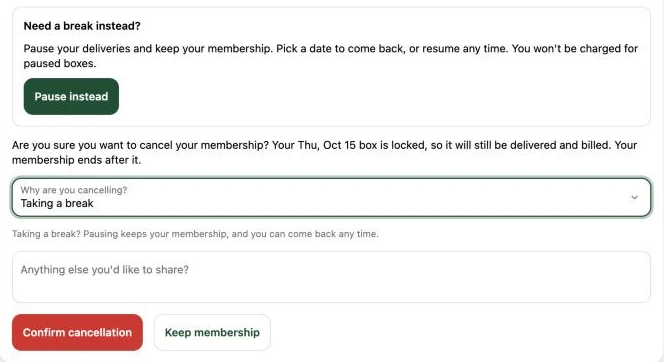
If they pick one of Copia’s built-in reasons, they see a tip:
| Reason | Tip |
|---|---|
| Taking a break | Pausing keeps their membership, and they can come back any time. |
| Moving / relocating | They can pause until they’re settled instead. |
| Too much produce | They can skip any box before it locks, or ask you about a smaller share. |
| Too expensive | Ask you about a smaller share or a less frequent schedule. |
Your own custom reasons don’t get a tip. When a member pauses from the cancel form, their Activity on the member page says “Paused instead of cancelling”.
What members see when they make a change
- Only the button they tapped shows it’s working.
- Quick confirmations (“Dietary notes saved.”) pop up briefly and go away on their own. Longer messages, like what a pause or cancellation means for a locked box, show right next to what they changed.
- If something goes wrong, the message shows in the same place, so they don’t have to scroll to find it.
- Skip and removing a swap come with Undo for a few seconds. Skip buttons are no longer red.
- Delivery badges use plain words: Upcoming, Paid, Pay at pickup, Invoice sent, Delivered, Skipped, Paused, Picked Up.
Members with more than one membership
A customer who has joined more than once (two seasons, or the same share twice) sees Your memberships at the top, with one button per membership. Picking one switches the whole page to it. When two look the same, the button adds when they joined (”· joined Jun 9, 2026”), and cancelled ones say “(cancelled)“.
Cancelled memberships
After cancelling, the page shows the membership as Cancelled with nothing left to change: no add-ons, box preferences or next box. It tells them how to come back: “To rejoin, contact [your farm] at [your email].” That uses the Contact email in your Copia Settings, so keep it current.
Set it up (about 5 minutes)
- In your Shopify admin, go to Settings → Checkout and click Edit on your checkout and accounts configuration.
- In the editor, open the Apps panel. Click + next to Copia Member Portal, choose Accounts, then click Save. This adds the My CSA page.
- Check that My CSA appears in your customer account menu. If it doesn’t, go to Content → Menus → Customer account main menu and add a My CSA item linked to Apps → Copia Member Portal.
- Open the My CSA page from a customer account and copy its web address (it ends in
/account/pages/…). - In Copia, paste that address into Settings → Member portal URL. Copia puts this link in welcome and billing emails so members can find it.
Tip: The setup checklist inside Copia has direct links for steps 1 and 3, so you don’t have to hunt for them.
Swaps
Members swap from My CSA → Box Preferences → Swaps, under Add a swap:
- For which delivery? They pick one of their upcoming deliveries, or Every week. Only deliveries they can still change are listed (see The change cutoff). A delivery you haven’t planned yet shows “(not planned yet)” and can’t be picked.
- Instead of: for a delivery, the items in their box that day, from your harvest plan, in their size and without their Never include items. For Every week, the Can swap items on your Member item list, since later boxes aren’t planned yet.
- Give me: the Can swap items on your Member item list.
- Add swap. A note above the button says what they’ll get, like “In your Wed, Nov 4, 2026 box, you’ll get Potato instead of Kale.”
- Until you add Can swap items to your Member item list, the Add a swap section doesn’t appear.
- A swap happens when the item under Instead of is in that week’s box. The item they asked for doesn’t have to be in your plan: if it isn’t, they get it in the same amount as the item it replaces, like 1 bunch of potatoes instead of 1 bunch of Swiss chard, unless you’ve set an amount for that item. If it is in your plan but their size gets none of it, they get their usual item.
- A swap for one delivery shows with its date and a Remove link. After removing a swap, members can tap Undo to put it back. Once that delivery passes the cutoff it shows Locked.
- Swaps print on the pack list, like “Radishes (swapped: Carrots)”, and harvest totals include them. They also show in the member’s Your next box card.
- To stop offering an item you’ve run out of, untick Can swap for it on the Member item list.
When a swap changes the price
If you give items a price on your Member item list, a swap between two priced items changes the price of the box by the difference. Kale ($4.00) instead of cherry tomatoes ($6.50) takes $2.50 off. Potatoes ($5.00) instead of thyme ($2.00) adds $3.00.
- Members see the difference before they save: on each Give me item, like “Radishes (+$2.00)”, and in a note under the swap. Saved swaps show it too (”+$2.00”, or ”+$2.00 per box” for an Every week swap).
- It only applies to a box the swap actually changes, using the rule above. An Every week swap changes the price of every box it changes.
- Swaps with an unpriced item, or between two items with the same price, cost nothing.
- Box not billed yet: the difference is part of its price. A pricier swap shows on the bill as its own line, like “Swap: Thyme → Potatoes”. A cheaper one lowers the share line, like “Full (swap credit $2.50)“.
- Box already billed: the difference is settled separately. A pricier swap goes on the member’s next bill as an adjustment, and a cheaper one goes to their credit balance. Members who paid for the season upfront use their credit first, then get an invoice by email for the rest, like an add-on change.
- If you change a delivery’s plan after members have swapped, Copia reprices those boxes, and settles the difference for any that are already billed.
- If the share type has a minimum order amount, a swap can’t lower a box below it. The member is told the box’s new total and asked to add something else first.
You can turn this off for a share type: untick Charge price differences under Swaps in its settings (see Share types).
Never include
Members tap items they never want in their box under My CSA → Box Preferences → Never include, and tap again to undo. The choices are the Can exclude items on your Member item list. Members can’t type their own.
Items a member typed before this list existed still apply, and they can remove them. For anything that isn’t on your list, like an allergy, members can use Dietary notes, which print on the pack list.
Tip: You can rewrite the short help lines members see in Box Preferences, like “Tap items you never want in your box. Tap again to undo.”, under Settings → Portal wording (see Farm settings).
What you’ll see in Copia
Everything members change in the portal shows up right away on their member page and in the member activity log. Changes made after a delivery’s cutoff start with the next delivery. The portal shows “Starts with your Tue, Oct 20 box” next to that setting. If no later delivery is scheduled yet, it says “Starts after your Tue, Oct 13 box”. Preferences like “never include beets” and dietary notes are printed on the pack list so whoever packs the box sees them.