Seasons and delivery dates
Create a season, pick your delivery dates, set a default box, and invite members back next year.
A season is a run of delivery dates, like “Fall 2026” or a year-round share. Members sign up for a season, and Copia creates a box for each member on each delivery date. Those boxes are what you bill, pack and deliver.
Create a season
- Go to Copia → Seasons and click Add season.
- Give it a Season name. Members see this name.
- Under Season type, choose how long a membership lasts: Seasonal (until the season ends), Year-round (until they cancel) or Rolling (for a set number of boxes).
- Pick the Default delivery cadence: Every week, Every other week, Every other week (Week B) or Once a month. Week B is the every-other-week group that starts a week later, so two groups can alternate weeks. Turn on Let members choose their cadence to offer more than one.
- If you sell more than one share type, choose which ones this season is Available for (see below).
- If you have more than one pickup location, choose which ones this season offers under Pickup locations (see below).
- Pick your Delivery dates (see below).
- Click Save.
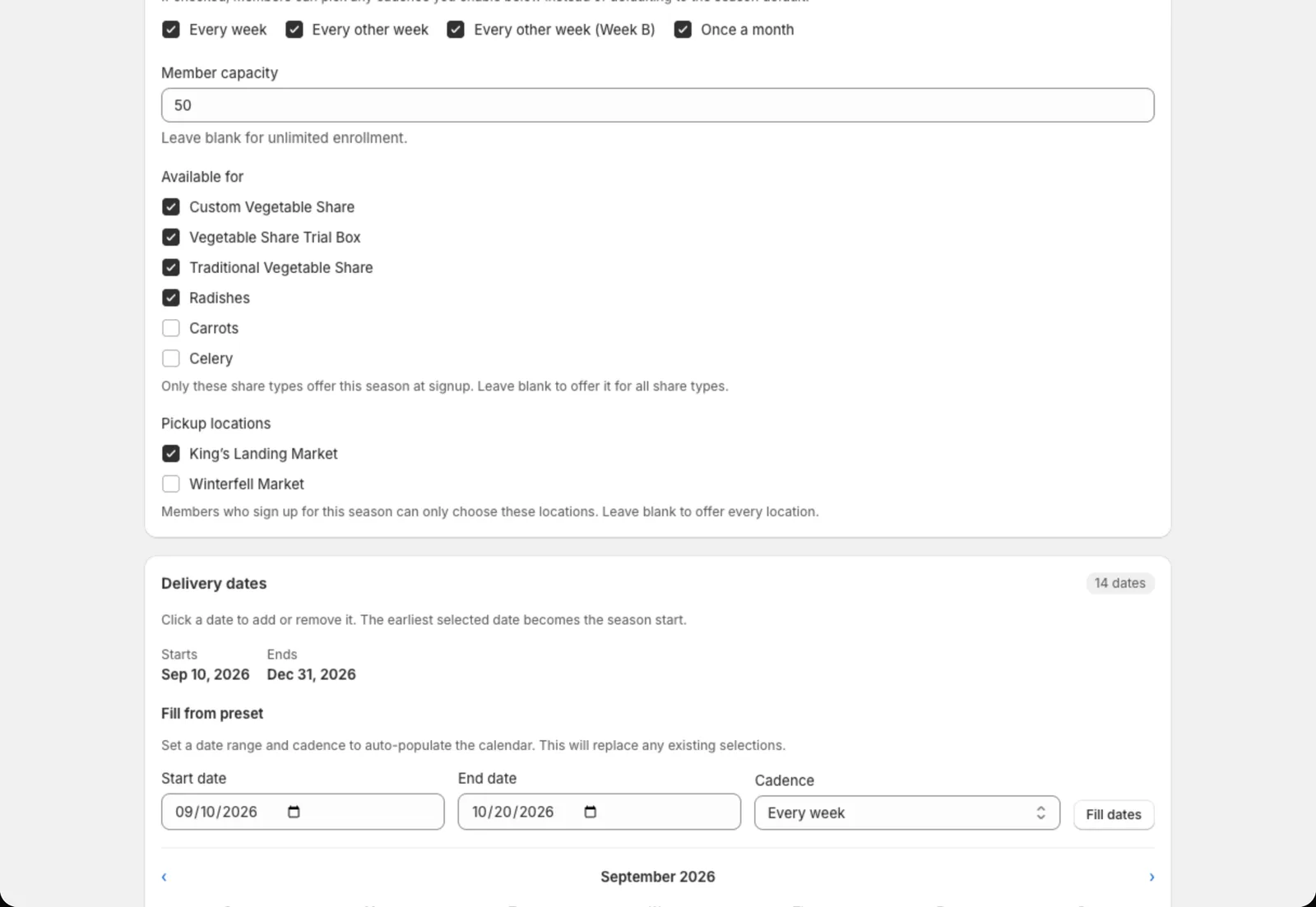 Tick the share types and pickup locations that should offer this season. Delivery dates are on the calendar further down.
Picking delivery dates
The quickest way is Fill from preset: enter a start date, end date and cadence, then click Fill dates. After that, click any single date to add or remove it, for example to skip a holiday week.
If you remove a date that already has a harvest plan (items in Harvest Planning or a delivery route), Copia asks before saving, for example Remove 1 planned delivery date?, and lists each date with what’s planned on it. Remove dates and save deletes those plans for good. Cancel keeps everything, so you can select the date again on the calendar.
For year-round seasons, turn on Auto-generate delivery windows. Copia then keeps adding new dates a few weeks ahead (you choose how many), so you never run out.
When pickups are
A season’s dates are its pickup dates at every location it offers, unless you give a location its own dates. A location’s open days don’t move them. Once a season has upcoming dates, its page shows a Pickup dates card, for example “Pickups on Wednesdays · next pickup Wed, Oct 21”, or each date when there are six or fewer, like “Pickups: Sun, Nov 8 · Sun, Feb 7 · Sun, Apr 11 · Sun, Aug 8”.
If a pickup location this season offers is set to open on other days, the card warns you, for example:
Hood River Farmers Market isn’t open on Sunday, but this season’s pickups are on a Sunday. Change the location’s days in Pickup Locations, or this season’s dates.

The warning goes away once the location’s Days you’re open include the pickup day, or once you clear its days.
Members who paid for the season upfront
A member who paid for the whole season upfront gets the boxes they paid for, and no more. Adding a date to the season, or to their location, doesn’t give them a box, since nothing would bill it.
Their boxes also stay on their dates. If you remove a date, or change their cadence or location, use Move on their member page to put a box on another date.
Give a location its own dates
Locations don’t have to share one calendar. A location or home delivery zone with its own dates uses them instead of the season’s. Any location without its own keeps the season’s dates.
- On the season’s page, go to Location dates. It lists each location, and each home delivery zone of the share types this season offers.
- Click Set dates on the one you want.
- Click each date on the calendar. Add every date it has in this season, not just the next one.
- For a delivery zone, keep Use these dates for every home delivery zone ticked to apply them to all your zones, or untick it to set just this one.
- Click Save.
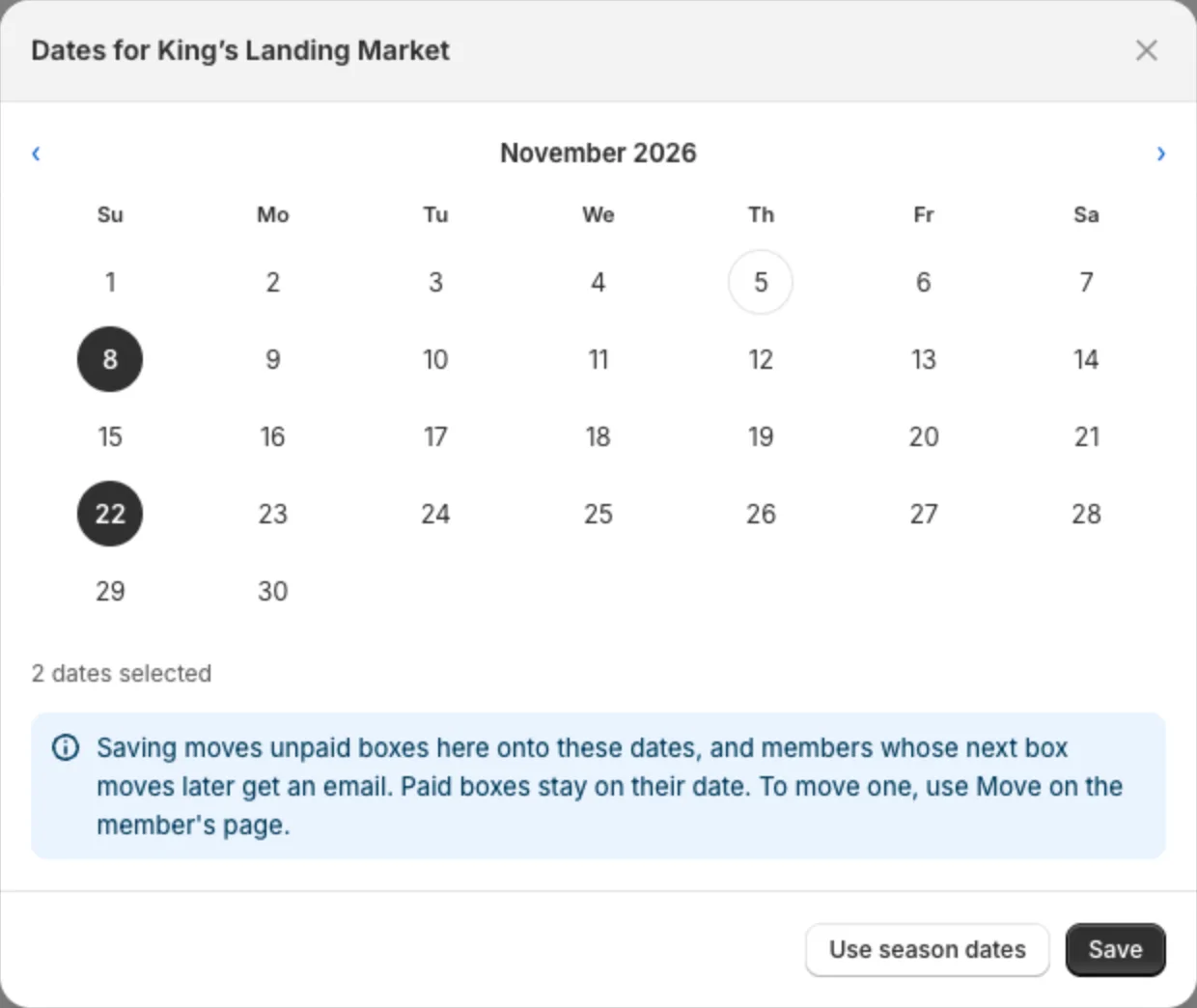
To go back to the season’s dates, open it again and click Use season dates.
Closed for a round? Leave that date out. New members at that location start with its next date.
Saving changes boxes right away:
- Unpaid boxes at that location move onto the new dates. Boxes of members who paid for the season upfront stay put.
- Paid boxes stay on the date they were paid for, and the location’s closest date within three weeks counts as theirs, so nobody gets a second box. To put a paid box on another date, use Move on the member’s page.
- Members whose next box moves later get a Delivery moved email.
- Someone who joined after a date doesn’t gain that date.
Tip: Enter all of a location’s dates before you save. Saving just the next date takes its later dates off the schedule, and unpaid boxes on them are removed.
What else follows a location’s dates:
- Signup form: each location card shows its own dates, and the review step counts that location’s boxes.
- Season pricing: when a location has fewer boxes left than the season’s box count, members pay the per-box price for the boxes they’ll get.
- Harvest Planning: each date is its own delivery, with its own box contents, delivery notification and billing run. Locations on the same day share one. Use Copy from another date to reuse a box.
Location dates work on seasonal seasons, not year-round ones.
Sell a set number of boxes all year
A Rolling season suits a share sold all year on a fixed number of boxes, like four quarterly pickups. You keep one list of dates, and each new member gets the next four from whenever they join, at the full price. Someone who joins in November and someone who joins in February both get four boxes. A year-round member, by contrast, keeps getting boxes until they cancel.
- On the season’s page, under Season type, choose Rolling: for a set number of boxes. This also turns on Allow mid-season join.
- Set Boxes per member.
- Pick your Delivery dates on the calendar.
- Click Save.
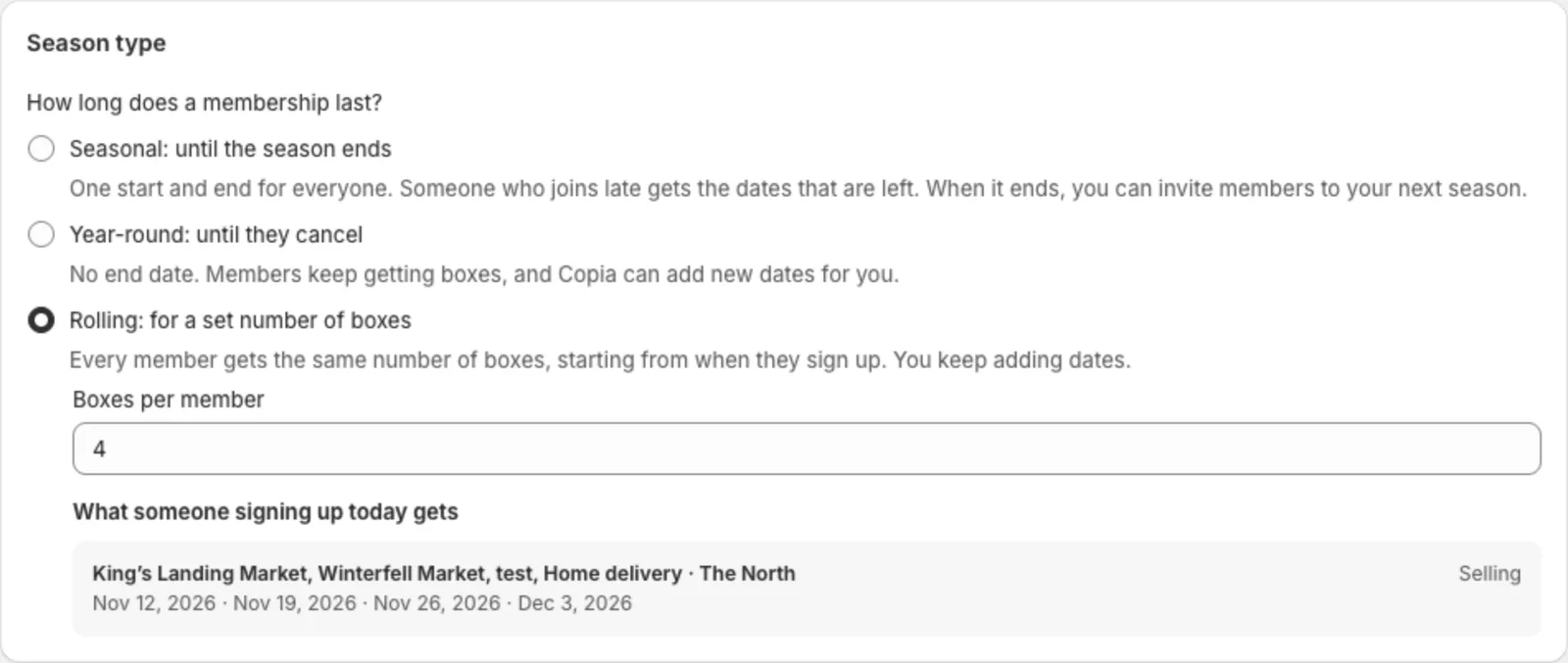
What someone signing up today gets lists the dates a new member would get at each location and delivery zone, using its own dates and cutoff. Places that get the same dates share a row, and any with a problem come first.
If a share type offered in this season uses season pricing, its box count has to match Boxes per member, or the season won’t save.
Members you already have keep the boxes they have and don’t get any new dates you add.
Tip: Switching a season that already has members? Choose Rolling and click Save before you add any new dates, including a location’s own dates. Until it’s Rolling, members get a box on every date you add. Switching the season to Seasonal later doesn’t add boxes back for anyone who joined while it was Rolling.
Keep adding dates
Each new member has to get a full set of boxes, so signups stop when too few dates are left. Dates close at your signup cutoff, not on the day itself.
On the season’s page, What someone signing up today gets tells you where each place stands:
- Selling: there are more dates than a member needs.
- Add a date before … closes: exactly enough dates are left, and signups stop when that date closes.
- Signups stopped: too few dates are left. Add the number of dates it asks for to reopen signups.
Copia → Seasons shows a banner when a Rolling season that’s open for signups needs dates.
Locations and delivery zones with their own dates are counted separately, so one can stop while others keep selling. On the signup form, that location shows Signups paused and can’t be picked. If the whole season is short, the form doesn’t offer it. You can’t add a member yourself to a short season either.
Tip: Keep at least one date more than Boxes per member at every location, so signups never stop by surprise.
When a member’s boxes run out
Unless they chose to renew automatically, the membership doesn’t renew and they aren’t charged again. They stay in your members list as active, with no more boxes coming.
To buy again, they check out on your signup form using the same email. Their new boxes start after their last one. Two things to know:
- The form’s review step lists the next open dates, not the dates they’ll actually get. The dates are correct on their member page after they pay.
- Someone choosing Pay in person is told they’re already enrolled, so for now they need to pay online.
Changing dates or members later
A rolling member’s boxes stay on their dates. If you remove a date, or change a member’s cadence or location, their boxes don’t move. Use Move on the member’s page to put a box on another date.
Let members renew automatically
Members who pay for the season upfront can choose to renew automatically, so they don’t have to sign up again. Shopify saves their card at checkout for the renewal.
The Auto-renew card is on the season’s page once Shopify lets Copia charge saved cards for your store. It needs saved cards turned on in Copia → Settings → Saved cards.
- Rolling seasons renew into the member’s next set of boxes. Nothing to set up: save the season and it’s ready.
- Seasonal seasons renew into the season you choose under Renews into. Create next season first (Duplicate works), then pick it there and click Save. Leave it on Doesn’t renew to not offer it.

Once it’s set, the card shows what Checkout shows, for example “Next 4 deliveries paid upfront · renews every 12 months”. Members see the same wording in their cart, at checkout and on their order.
What members see
On the signup form’s review step, members paying for a season-priced share online choose Renew automatically or Don’t renew. Don’t renew is selected until they change it. Someone joining partway through a season pays for the boxes left and can’t renew automatically. Members paying in person can’t either.
Members who chose to renew see it in their member portal, with a Turn off auto-renew button. You can turn it off from their member page too. Turning it off cancels the renewal. They keep the boxes they paid for, and to renew later they sign up again. Turning it off after the reminder but before the charge day means they aren’t charged.
How a renewal goes
Copia takes care of each renewal on its own:
- Two weeks before the first new box, the member gets an email with their next dates, the price and the day their card will be charged, like “We’ll charge $575.00 to your saved card on Sun, Nov 7”. If the price changed since they last paid, it says so. The email has a Don’t renew button that works without signing in.
- One week before the first new box, Copia charges their saved card. Their new boxes show on their member page as paid, and they get a receipt. A seasonal member moves into the season it renews into.
- If the card is declined, nothing is taken. They get an invoice for the new boxes, titled “Your card didn’t go through”, which they can pay with any card. Your unpaid invoice setting applies if it’s still unpaid on the delivery day.
The price is your current price for that size: the season price for a full season of a season-priced share, or the per-box price for each box. Add-ons and a delivery fee they checked out with renew too, at the price they paid.
Not enough dates yet? A Rolling member renews into their next set of boxes after their last one, so you need those dates on the calendar. A seasonal member needs dates in the season it renews into. If they aren’t there two weeks before the member’s last box, nobody is charged. The member gets an email saying the renewal is waiting on dates, and you get one too, at your farm’s contact email. Once you add the dates, the reminder and charge go ahead. Copia only uses dates at least 10 days away, so the member always hears about it first.
Tip: On a Rolling season, keep adding dates well ahead, so renewals never wait.
Offer a season for some share types only
If you sell more than one share type, for example a Veggie Share and an Egg Share, each season has an Available for list under Season details. Tick the share types that should offer this season. Leave every box unticked to offer it for all of them, which is how every season works until you change it.
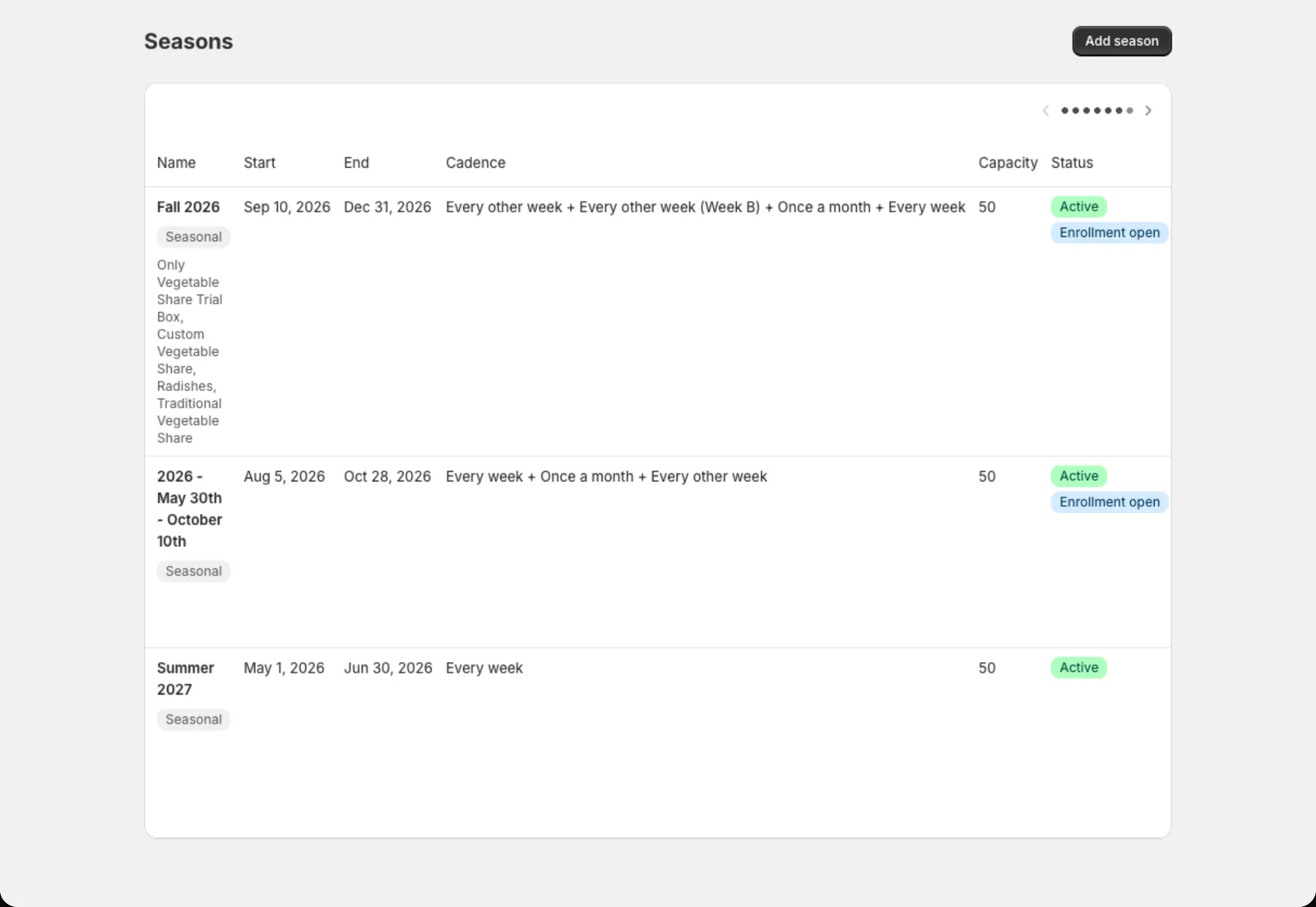
The signup form on each share type’s product page only shows the seasons available for that share type. So a “Winter Eggs” season limited to your Egg Share won’t appear on your Veggie Share page. On Copia → Seasons, a limited season shows “Only” and the share types under its name.
This only affects new signups. Members already in a season stay in it. When you add a member yourself, Copia only lists the share types the chosen season is available for.
Tip: Duplicate copies the Available for list too, so next year’s season starts with the same share types.
Offer a season at some pickup locations only
If you have more than one pickup location, each season has a Pickup locations list under Season details. Tick the locations that should offer this season. Leave every box unticked to offer all of them, which is how every season works until you change it.
Members choose a season first, so the pickup step of the signup form only shows that season’s locations. Home delivery isn’t affected.
Run different pickup days at different locations
If each pickup day should be sold on its own, give each one its own season. To sell one season with different dates at each location, use Location dates instead.
- Create one season per pickup day, each with its own delivery dates, like “Summer Tuesdays” and “Summer Saturdays”.
- On each season, tick only the location for that day under Pickup locations.
- Click Save on each season.
Members who choose “Summer Saturdays” then only see your Saturday location.
What changes for your members
This only affects new signups. Members already in a season keep their location. When you add a member yourself, Copia only lists the locations the chosen season offers. You can still move a member to any location from their member page.
Tip: Duplicate copies the Pickup locations list too.
Tip: If you delete the only location ticked on a season, that season goes back to offering every location. Check its list after deleting a location.
Enrollment settings
- Enrollment open: turn this off to stop new signups
- Allow mid-season join: let people join after the season has started
- Member capacity: the most members for the whole season. Leave it blank for no limit.
- Signup cutoff (days): how close to a delivery someone can sign up and still get that week’s box. Leave it empty or set it to 0 to include the very next delivery. New members also never start with a box that has already locked under a share type’s change cutoff, so the later of the two wins. When the change cutoff is the later one, a note under the field says so, for example: “Veggie Box boxes lock 2 days before delivery, so new members who join on Sunday start with the delivery after that Tuesday.”
Set a default box
Click Box contents on a season to set the items that usually go in a box. Every new delivery date starts with these items, and you adjust each week in Harvest Planning.
- Add item adds one item at a time. Link it to a Shopify product, set the quantity per full share and the unit (lbs, bunches, each…).
- Import from collection adds a whole Shopify collection at once.
- Auto-populate empty windows fills any delivery dates that don’t have items yet. Dates that already have items aren’t touched.
Season list actions
From Copia → Seasons, each season has quick actions:
- Duplicate: copy a season’s settings to start next year’s
- Deactivate / Activate: take a season out of use, or bring it back, without deleting anything
- Re-enroll invite: email everyone in the season a link to sign up again
- Box contents: jump to the default box
- Delete: permanently removes the season and every member in it. To end a season, use Close season instead (below).
Ending a season
On the season’s Box contents page, Close season stops enrollment and cancels all future unbilled deliveries. This can’t be undone, so only do it when the season is really over.