Holds, skips and credits
How pausing, skipping a week and credit balances work, for you and your members.
Members miss weeks: vacations, a busy month, too many zucchini. Copia handles this with skips, holds and credits.
Skipping a week
A skip takes a single delivery off. The member isn’t billed for that box, and it doesn’t appear on the pack list.
- Members skip and unskip from the member portal, up until your change cutoff. After that the delivery shows Locked.
- You skip from the member page: click Skip next to the delivery. Unskip puts it back.
Skipping doesn’t add credit. The box was never billed, so the member already doesn’t pay for it.
When a member skips, the portal tells them: “Thu, Oct 15 box skipped.” For a few seconds they can tap Undo to put the box back. (Skipping an invoiced box cancels its unpaid order instead, so there’s no Undo.) Unskipping says “Thu, Oct 15 box is back on.” If an older skip had added credit, unskipping takes that credit back and says so.
Members can skip from their delivery list or with Skip this box on the Your next box card at the top of the portal.
You can turn off member skipping for a share type in Share Types → Configure → Member box preferences.
If the week was invoiced but not paid yet, skipping it cancels that unpaid order. No credit is added, since nothing was paid. If one order covers several deliveries, it isn’t cancelled: you’ll see a message asking you to edit or cancel that order in Shopify instead.
Putting a membership on hold
A hold pauses every delivery in a date range. It’s good for vacations or a winter break.
- Open the member and click Put on Hold.
- Pick a start and end date. The end date is the last paused day: a box on that day is paused too, and deliveries resume after it. Leave both blank to pause from today until you resume them.
- Confirm.
To resume early, click Cancel Hold. Their remaining deliveries come back and are billed as normal.
Pauses start and end on their own, by your farm’s time zone (Settings → Farm timezone):
- A pause booked ahead starts on its first day. The member (or share) switches to Paused that day. When a member pauses one share and has no other active share, the member shows as paused too.
- A pause with an end date ends the day after its last paused day. This works for paused shares too.
- Boxes from paused days stay paused, whether the pause ends on its own or you end it early.
Paid boxes are never affected by a hold. If a box was invoiced but not paid yet, it’s dropped and the unpaid order is cancelled.
When a member pauses, any delivery already past your change cutoff still goes out and is billed, and the pause starts with the next one. The portal tells them before they confirm.
Pausing doesn’t add credit. Paused boxes aren’t billed, so the member doesn’t pay for them.
Pausing from the portal
Members see this as a pause, not a hold. In the member portal they click Pause deliveries or Pause pickups (or Pause this share when they have more than one), pick the first and last day to pause, then click Confirm pause. Both are optional: with no first day the pause starts today, and with no last day deliveries stay paused until they resume. Past dates can’t be picked. Their status shows Paused.
If you turned off Self-pause for the share type (Member box preferences), members don’t see these buttons and need to ask you. You can still put them on hold from their member page, as above.
Below the calendar, the portal spells out the pause before they confirm, for example “Pausing from October 20, 2026 through October 23, 2026.” and “These boxes are paused: Wed, Oct 21”. If no box falls in the dates, it says so. Afterwards they’re told “Your pause runs through [last day], and deliveries resume after that.” The pause email says the same.
- Resume deliveries ends a pause early.
- A pause booked ahead shows “Pause scheduled from … through …. You won’t get boxes during that time.” Remove scheduled pause takes it off. For one of several shares, the share’s card says “You won’t get boxes from this share during that time.”, with Remove scheduled pause and Cancel share.
- A paused member, or one with a pause scheduled, can still cancel (if you allow members to cancel). Cancelling replaces a scheduled pause.
- They get a “Your [farm] deliveries are paused” email with a Resume deliveries button.
Credits
A member’s credit balance is money you owe them. It comes off their next bill automatically.
Credits are added when:
- You set it by hand: open the member, click Edit, and change Credit balance. Use this for a damaged box, a short week, or a goodwill gesture.
- A member who paid for the season upfront removes or lowers an add-on on deliveries they already paid for. See Add-ons.
- A member swaps to a cheaper item in a box that’s already billed. See When a swap changes the price.
- You lower the price of one upcoming delivery. See Change one delivery’s price.
Skips and pauses don’t add credit, since those boxes aren’t billed.
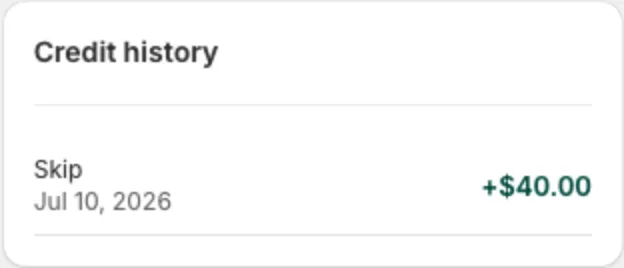
Members see their balance in the portal under Your Credit, along with recent activity. A balance below zero shows as −$40.00. They can choose whether to put it toward their next delivery. Members who paid for the season upfront have no more delivery charges, so their credit is used first on their next add-on invoice instead.
Charging extra instead
To charge a member more (a replacement bag, a missed add-on), open the member and use Bill adjustments → Add to next bill. It’s added to their next invoice as its own line, with the description you enter. Raising one delivery’s price does the same: see Change one delivery’s price.