Managing a member
Everything on the member page, from changing a size to editing a single delivery or cancelling.
Click any member in Copia → Members to open their member page. Everything about that member lives here.
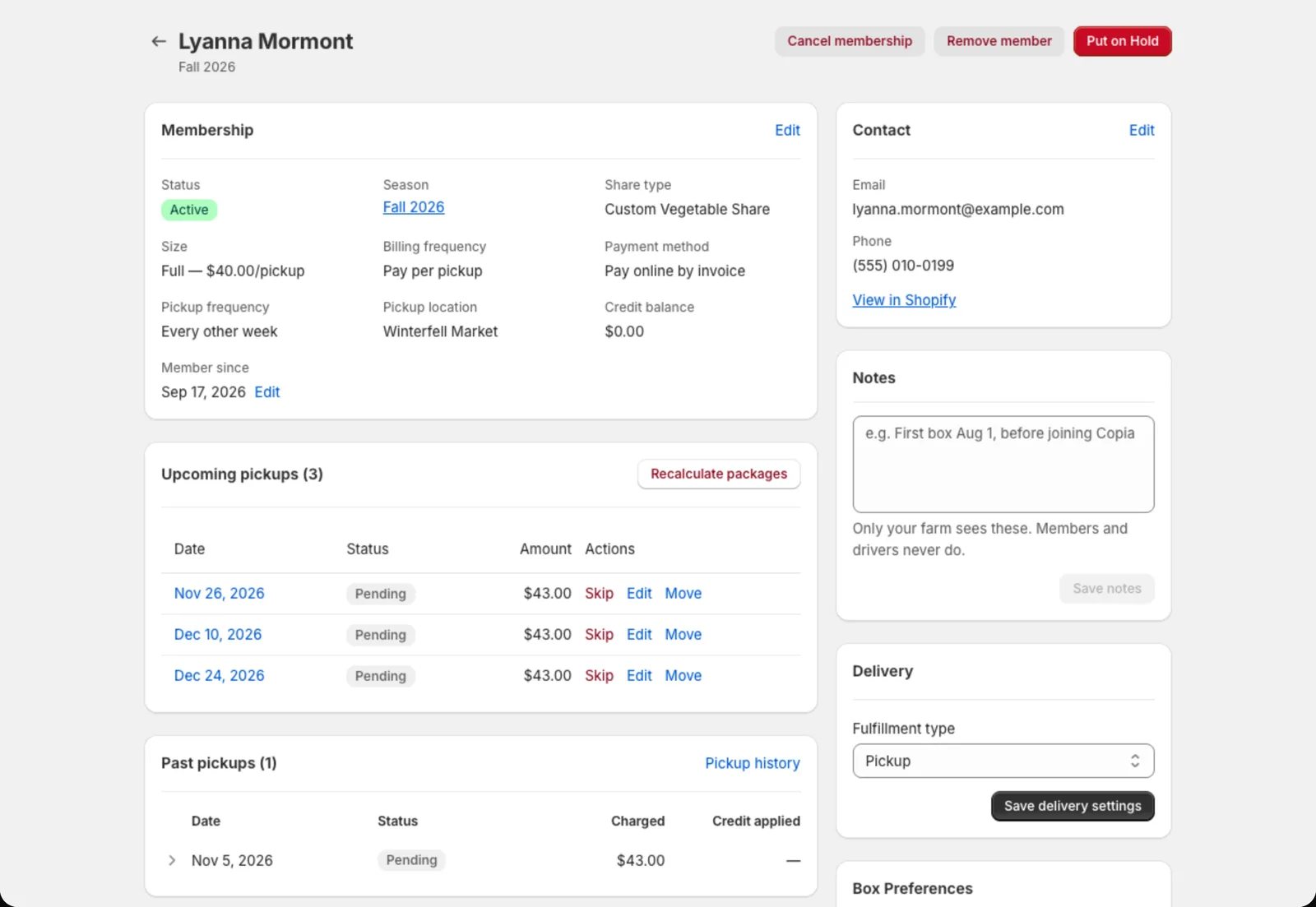
Membership details
The top card shows their status, season, size, billing frequency, payment method, pickup location or delivery address, credit balance, and Member since. Their pickup (or delivery) frequency reads Every week, Every other week, Every other week (Week B) or Once a month. Week B members get the weeks in between, starting a week later.
Payment method reads Pay online or Pay in person. If you’ve turned saved cards on, it names the member’s card instead, like “Saved card: Visa ending in 4242, expires 12/28”, or says Pay online by invoice for a member paying online without one.
Click Edit to change any of these: switch them to a bigger size, move them to a different pickup site, change how often they pay, or set their credit balance. Copia updates their future unbilled deliveries to match.
Keep a home delivery member in a zone
A home delivery member’s delivery zone comes from their zip code. To keep someone in a zone without adding their zip code to it (say a longtime member just off your route, when you don’t want new signups from that area):
- Click Edit on their membership.
- Under Delivery zone, pick the zone.
- Click Save changes.
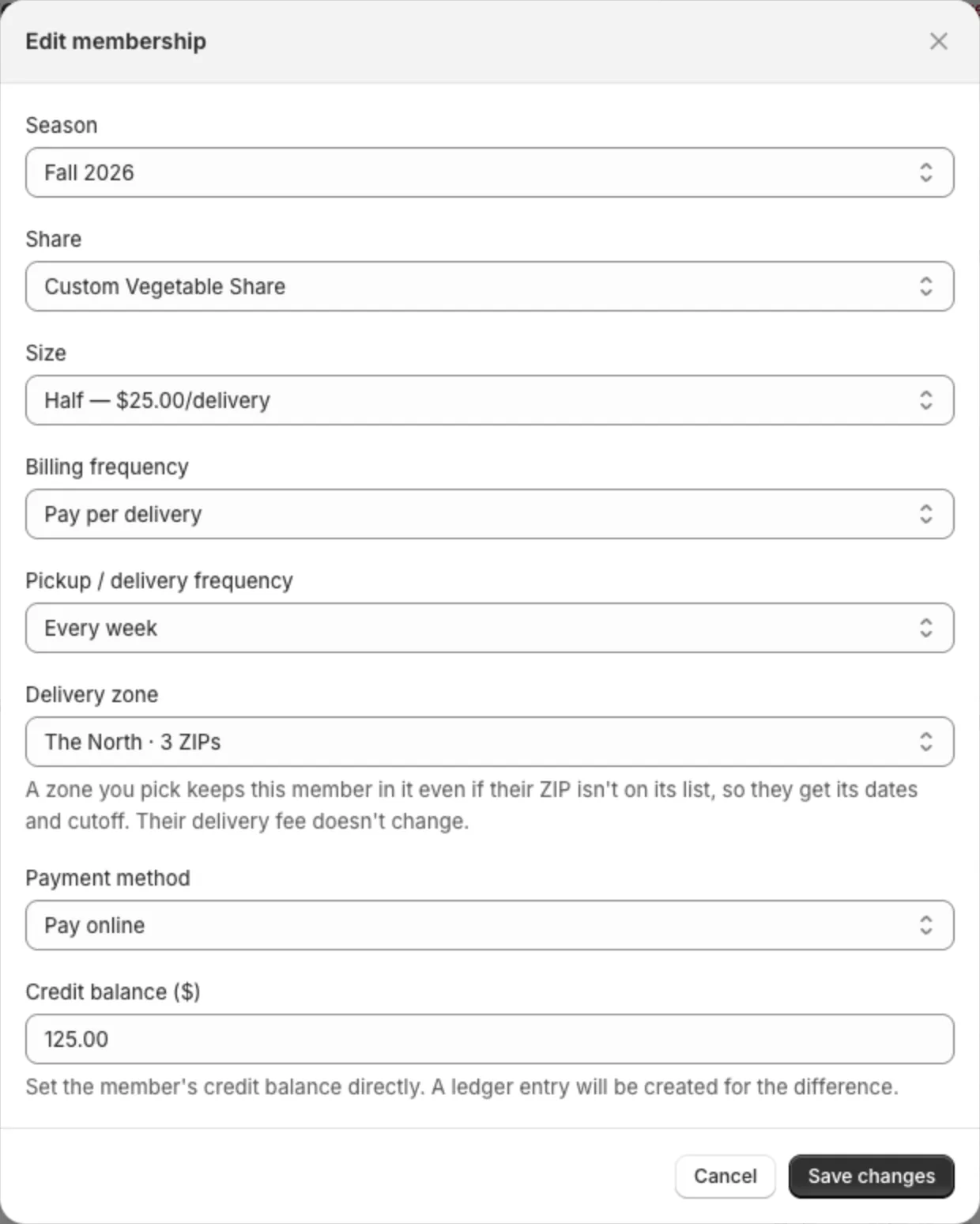
They get that zone’s delivery dates and cutoff from then on. Their delivery fee doesn’t change. If the zone has its own dates, unbilled deliveries move to them. Paid ones stay on their date, so use Move on those.
Pick Match by ZIP to go back to using their zip code.
Change when they became a member
Member since starts as the day they joined in Copia. For someone who bought before you moved them into Copia, set it to the day they first bought:
- Click Edit next to the Member since date.
- Pick the day.
- Click Save.
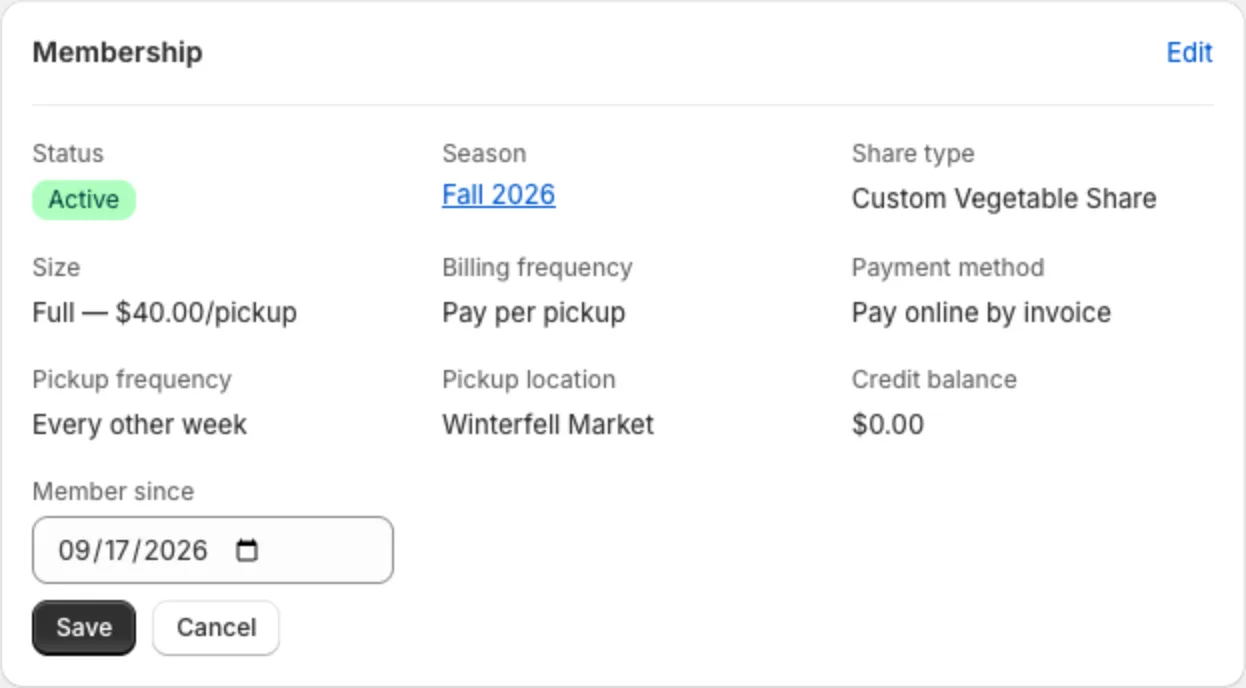
It can’t be a day in the future. The change shows in the member’s Activity, like “Member since Nov 10, 2026 → Aug 1, 2026”.
A member who paid for the season upfront and chose to renew automatically shows “Full season upfront, renews automatically”, with Turn off auto-renew underneath. Turning it off cancels the renewal and keeps the boxes they paid for.
Upcoming deliveries
A list of every upcoming box with its date, amount and status. The page’s wording follows how the member gets their boxes: Upcoming pickups for a pickup member, Upcoming deliveries for home delivery, and Upcoming boxes for a member with both kinds of share. When a swap changed a box’s price, the amount says so, like “incl. +$2.00 swap” (see When a swap changes the price). Each delivery has:
- Skip / Unskip: take a single week off, or put it back
- Edit (click the delivery): add extras just for that week, swap items in the box, or change its price
If a delivery has already been invoiced, Copia tells you and offers Update invoice so the member’s bill matches your changes.
Move a box to another date
Need one box on a different day? Click Move next to it, pick the New date, and click Move box.
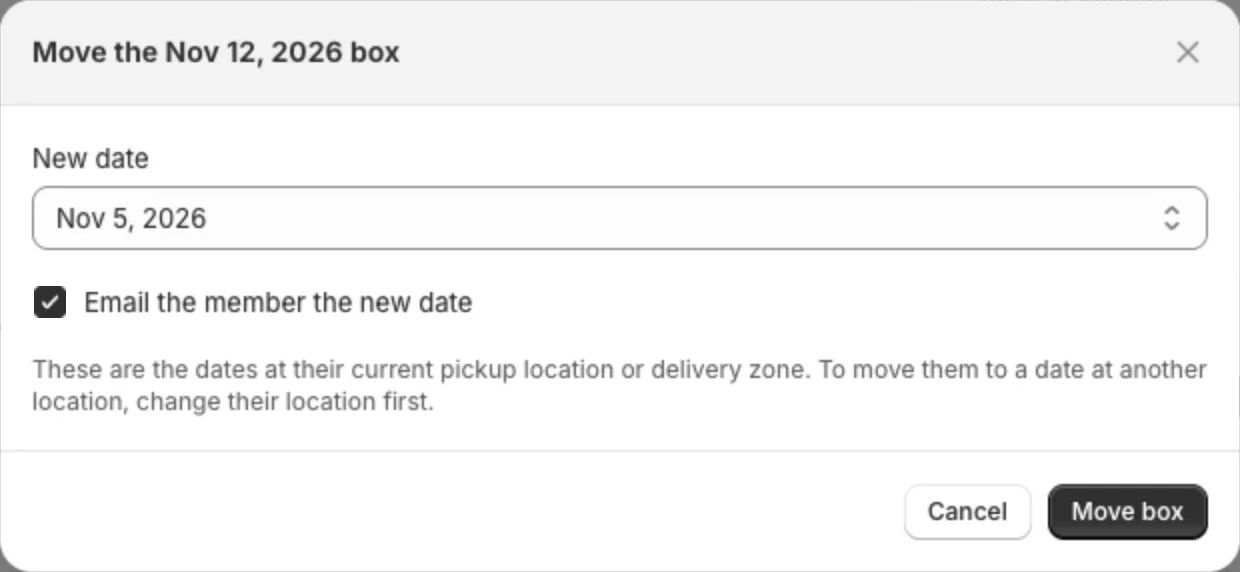
- The list shows upcoming dates at the member’s current pickup location or delivery zone. To move them to a date at another location, change their location first (Edit on Membership).
- A paid box stays paid. Its Shopify order keeps the old date in its tags.
- Add-ons and box choices for that delivery move with it.
- Email the member the new date is on unless you untick it.
Move doesn’t appear on a box with an open invoice. Settle the invoice first, because paying it finds the box by date. A box on a delivery route has to come off the route before it can move.
Add extras for one delivery
To add something for one week only, like a second dozen eggs or five loaves of bread:
- Click Edit on the delivery.
- Under Add-ons, pick it from Add a one-time add-on…. Add-ons the member already gets show ”· extra”, and the extra comes on top of their regular amount.
- Set the quantity next to it and click Add.
It shows as its own line with a One-time badge, like “Eggs ×1”. The editor lists only the add-ons that go in that box, so an every-other-delivery add-on shows only on the weeks it’s in, labelled like “$30.00 · Every other delivery”. Click Remove to take it off. If the member skips their regular add-on that week, the extra still goes in the box.
If the delivery has already been invoiced, the extra isn’t sent right away. It shows with the price it adds, and the new total updates. Click Update invoice to send the corrected invoice.
Tip: If the delivery is already paid, the extra goes in the box but isn’t charged. Use Bill adjustments → Add to next bill to charge for it.
Swap an item for one delivery
Under Box items, each item in that box has Skip and Swap with…. Items the member has on Never include say “(left out: Never include)”, and their every-week swaps say ”→ Spinach (every week)”, so the list matches what you’ll pack.
- Type the item they’ll get instead in Swap with….
- Set × to how many of it they get, or leave it blank for their usual amount.
- Click Swap.
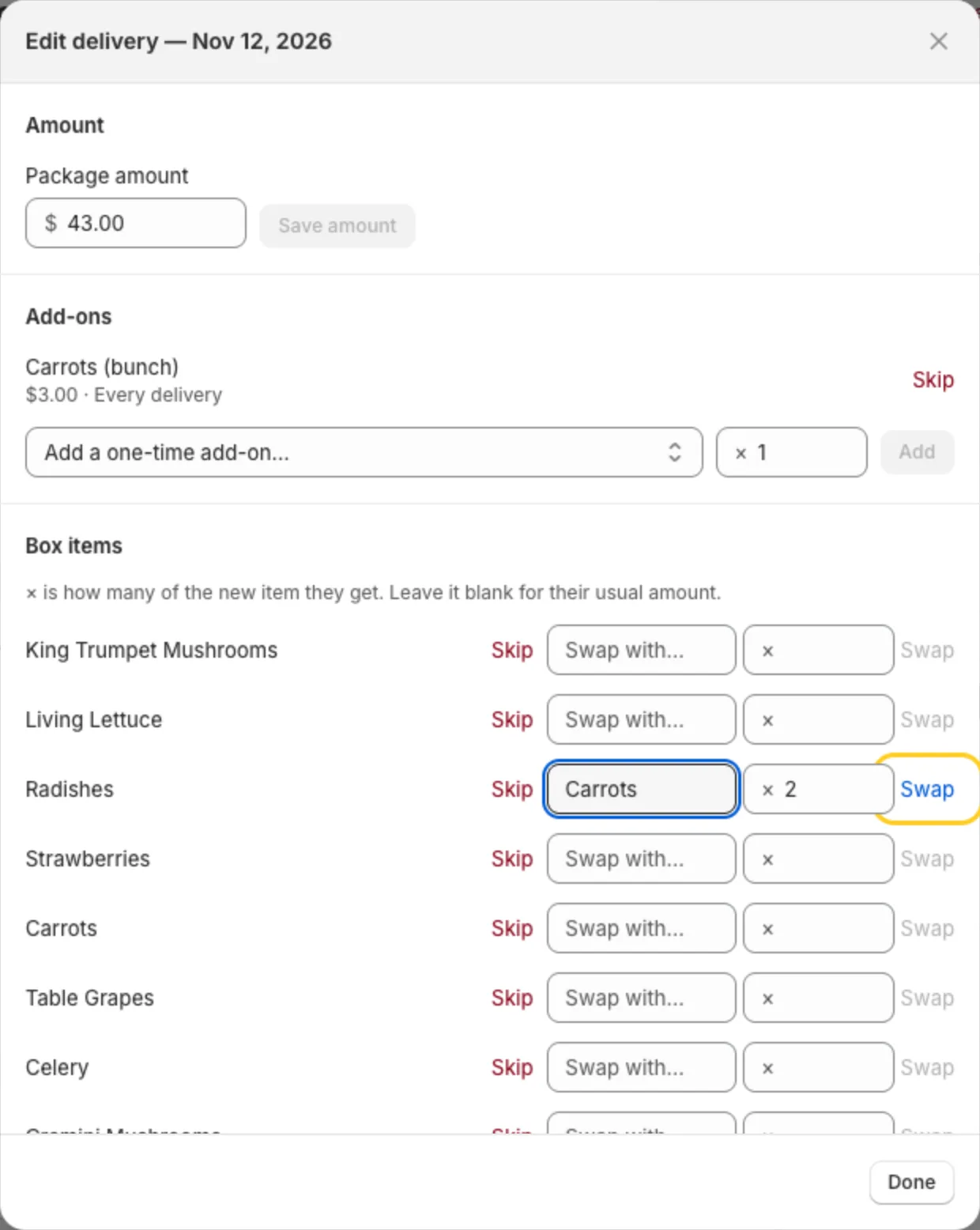 Radishes are $5 and carrots $3 on this farm’s Member item list, so × fills in 2.
The swap shows next to the item, like “Cherry Tomato → Cucumber ×3”. The pack list and harvest totals pack that amount. To change the amount later, edit the × box next to the swap and click Update. Click Restore to undo the swap.
You can swap an item that’s on the member’s Never include too. For that delivery they get the new item, even though the old one stays on their Never include list.
If both items have a price on your Member item list, × fills in the amount that’s worth about the same, like 3 cucumbers at $2 for a $6.50 pint of cherry tomatoes. You can change it. The box is charged or credited the difference: the new item’s price times the amount, minus the old item’s price. In that example, 3 × $2 − $6.50 is a $0.50 credit, and the swap shows ”(−$0.50)“.
Change one delivery’s price
To charge a different price for one upcoming delivery, like a discount for a short week:
- Click Edit on the delivery.
- Under Amount, type the new price in Package amount.
- Click Save amount.
The delivery keeps its usual price in the list. Copia puts the difference on the member’s next bill instead:
- Higher: a bill adjustment, like “Dec 23 box price raised to $50.00”. It shows under Bill adjustments until it’s billed.
- Lower: credit, which comes off their next bill. It shows in their credit balance.
The next bill may be for an earlier delivery than the one you changed. The total the member pays comes out the same.
On a delivery that’s already invoiced but not paid, Package amount only changes Copia’s record, not the invoice. Use Update invoice (below) instead.
Fix an invoice that’s for the wrong amount
Sometimes a box’s price changes after its invoice went out, for example when a member’s add-ons change. Click Edit on the delivery. If the invoice no longer matches, Copia says so: “The invoice is for $X, but this box now comes to $Y.” Click Update invoice to replace it with a corrected one.
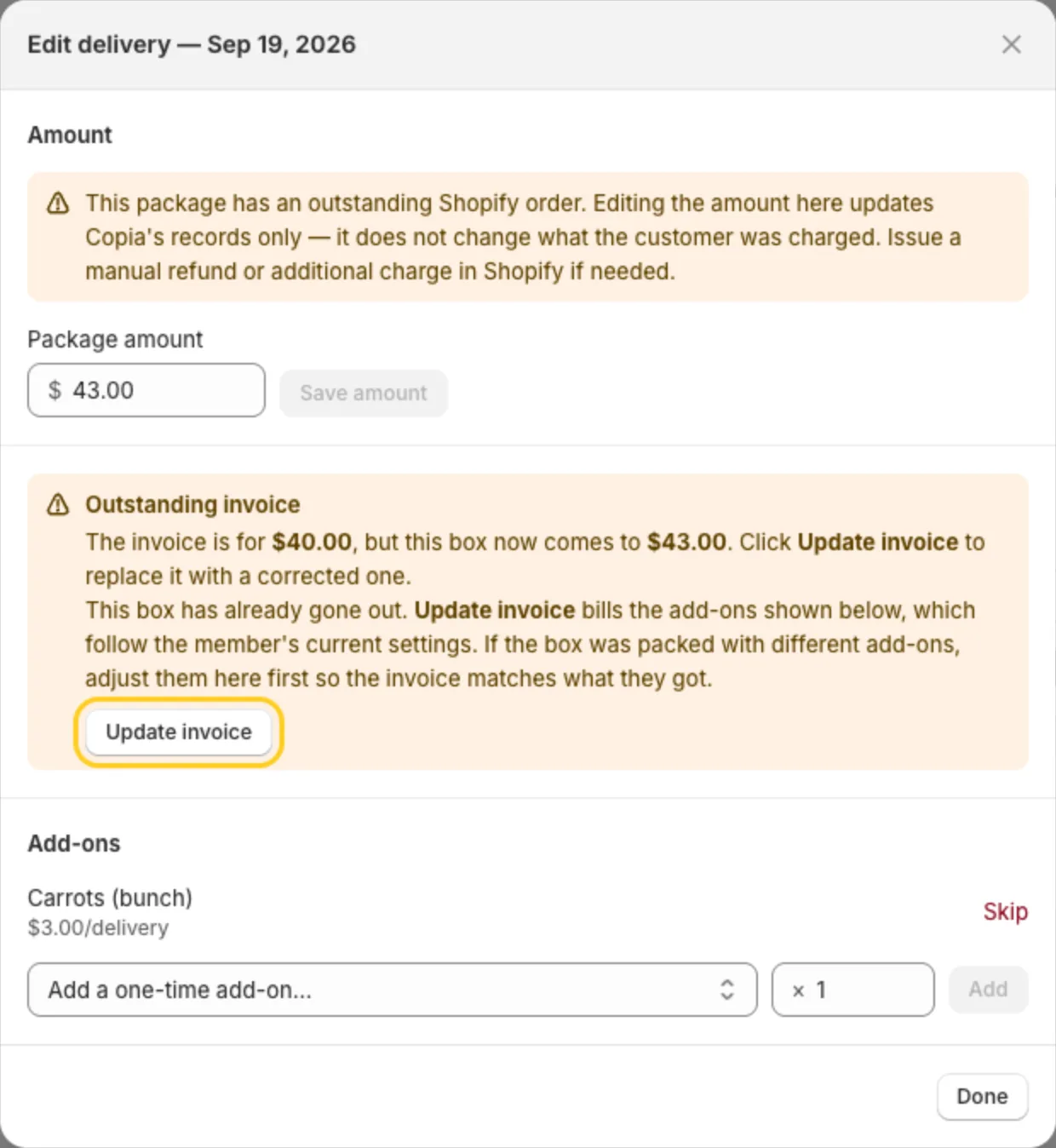
You can do this for a past delivery too, as long as it isn’t paid yet. Under Past pickups or Past deliveries, unpaid boxes have an Edit link.
Tip: For a box that’s already gone out, Update invoice bills the add-ons the member has now. If the box was packed with different add-ons, change them in the editor first so the invoice matches what they got.
When a member changes an add-on, swap or Never include after a delivery locked or was billed, that delivery keeps what it had (see The change cutoff). Its editor shows this:
- Add-ons: one line with what the box gets, like “Eggs · $15.50 · Kept as before: the current setting (×3 · $46.50) starts after this box”, or “Not in this box: added after it was locked or billed”. Click Apply current setting to give that delivery the member’s new add-on setting instead. On a delivery that’s invoiced but not paid, it waits with your other changes until you click Update invoice, which sends a corrected invoice. Paid deliveries don’t have the button.
- Box items: “(kept: a later preference change starts after this box)” next to the item. Click Restore to apply the member’s current preferences to it.
Keep notes on a member
The Notes card, under Contact, is for anything you want to remember about this member: when they got boxes before they joined Copia, who delivered them, where a missed box is being held. Only your farm sees it. Members don’t see it in their portal, and drivers don’t see it on their route.
- Type in the Notes box.
- Click Save notes.
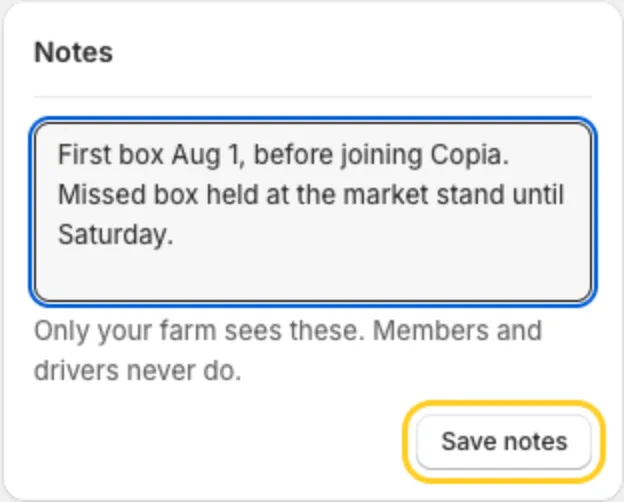
To remove a note, empty the box and click Save notes.
Tip: Anything your driver needs at the door, like a gate code, goes in Delivery instructions instead. Drivers see those.
Keep notes on a past box
Each box has an Admin note you can use for your own records, like who picked it up or what you agreed with the member. Members don’t see it.
- Under Past pickups or Past deliveries, click a row to open it. To see older boxes too, click Pickup history or Delivery history at the top of that list. A member with both kinds of share has Past boxes and Box history.
- Type in Admin note.
- Click Save note.
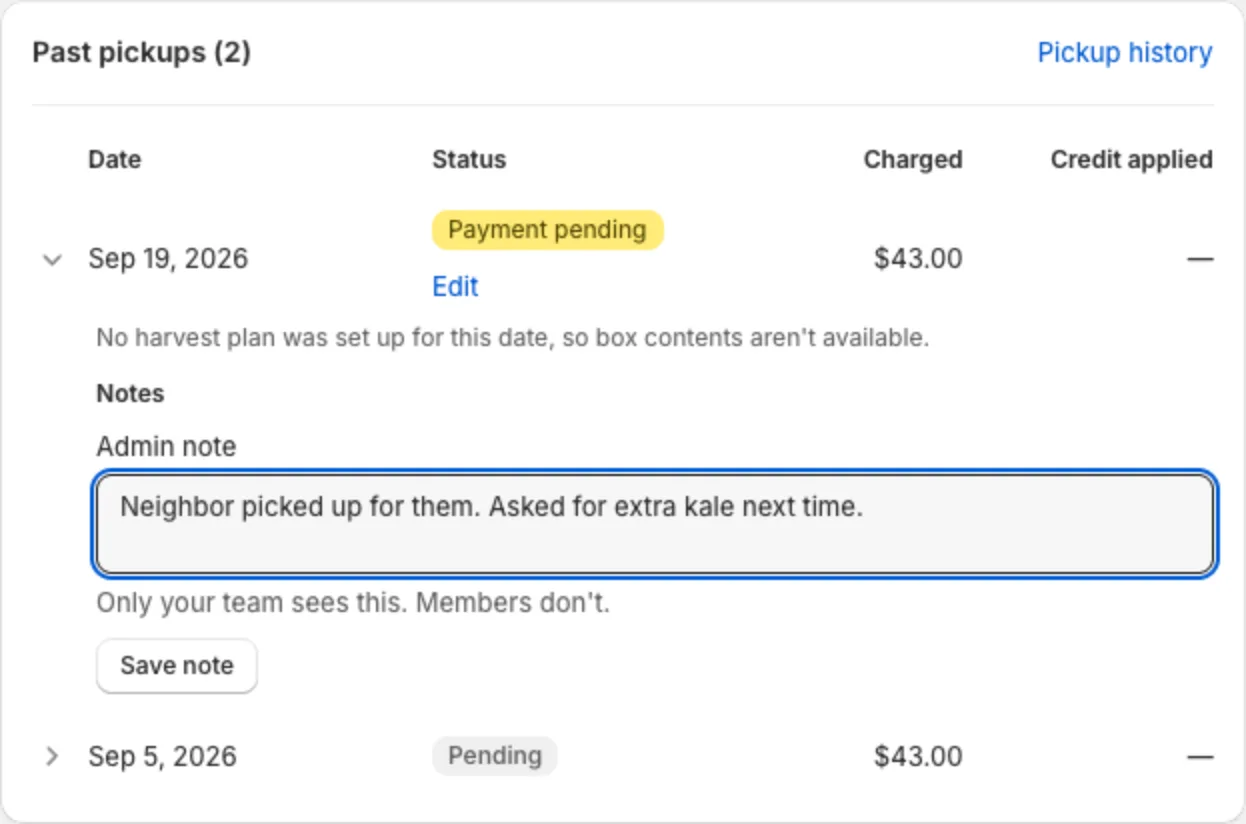
Change the note any time and save again. To remove it, empty the box and click Save note.
Rows that have a note show a Note badge. That includes a day when a driver reported an issue: their note shows above yours, starting Driver:. If the driver later marks that stop as delivered or clears their report, their note goes away.
You can also add notes while members pick up. See Keep notes while you check in.
Pausing and cancelling
- Put on Hold: pause the membership. Pick start and end dates (a box on the end date is paused too), or leave both blank to pause from today until you resume them. Click Cancel Hold to resume.
- Pause share / Cancel share: for members with more than one share, pause or cancel just one of them. Cancelling a share stops only that share’s future boxes, and their other shares carry on. The reason and note you pick show up in the member’s Activity. Cancelling their last share cancels the membership.
- Cancel membership: ends the membership and cancels future boxes. You’ll pick a reason (from your list in Settings → Cancellation reasons) and can add a note.
Boxes that are already paid are never touched. If a box was invoiced but not paid yet, pausing or cancelling drops it and cancels the unpaid Shopify order.
Tip: Remove member permanently deletes the member and their history from Copia. Use Cancel membership instead, unless the member was added by mistake. Their Shopify customer account isn’t affected either way.
Contact and delivery info
- Contact: name, email and phone. Click View in Shopify to open their customer record.
- Delivery: address and delivery instructions (like gate codes) for drivers.
Box preferences and add-ons
- Dietary notes, Never include items and Standing swaps. Members can set these from the member portal, and you can set them here too. They print on the pack list. A standing swap between two priced items shows its difference, like ”+$3.00 per box it changes”.
- Add-ons: see, edit or add recurring extras. See Add-ons.
When an add-on changed after a delivery was billed or past its change cutoff, the card says when the change starts, for example “Changes start Tue, Nov 17” and “The Tue, Nov 3 box was already billed, so it keeps Eggs ×1 and Sourdough Bread.” Each changed add-on has a badge: Starts Tue, Nov 17 (new), ×2 from Tue, Nov 17 (×1 before) (new amount), Changes Tue, Nov 17 (new frequency) or Last box Tue, Nov 3 (removed).
Credits and bill adjustments
- Credit history lists every credit added or used.
- Bill adjustments → Add to next bill adds a one-off charge, like a replaced cooler bag. It shows on their next invoice as its own line. To give money back, use the credit balance instead.
- Discounts shows any discount covering this member’s boxes. Give a discount takes money off their boxes for as long as you choose. See Give members a discount.
See Holds, skips and credits for how credits work.
Activity
At the bottom, Activity is a timeline of everything that’s happened to this member: signup, charges, skips, holds, changes they made in the portal, and more. It’s the first place to look when a member asks “why was I charged this?”